

 1:24:02
2026-06-17 01:41
 49:08
49:08
49:08
2025-11-03 06:50
 2:40:57
2:40:57
2025-12-17 16:07
 46:13
46:13
46:13
2026-06-17 21:30
 0:53
0:53
0:53
2026-06-15 21:02
 57:13
57:13
57:13
2025-10-30 20:24
 1:13:41
1:13:41
2026-06-17 21:04
 1:34:43
1:34:43
2025-07-05 18:00
 1:37:38
1:37:38
2025-06-08 04:36
 1:25:52
1:25:52
2026-06-16 20:41
 46:21
46:21
46:21
2025-11-01 21:30
![Я спас MrBeast от смерти. [Stokes Twins]](https://pic.rtbcdn.ru/video/2026-06-14/46/7a/467a446ae9d35af665671606cc14aaa3.jpg?width=300) 1:18:49
1:18:49
1:18:49
2026-06-18 16:20
 1:25:41
1:25:41
2024-08-22 00:12
 54:50
54:50
54:50
2026-06-05 02:31
 2:34:30
2:34:30
2023-12-04 18:21
 1:09:27
1:09:27
2026-06-16 22:05
 2:24:59
2:24:59
2026-04-26 03:47
 1:06:46
![Ислам Мальсуйгенов и Зульфия Чотчаева - Путеводная (Премьера клипа 2026)]() 3:15
3:15
![Стас Михайлов, Люся Чеботина - Обнимай (Премьера клипа 2026)]() 3:40
3:40
![SHAXO, ILIMA - Чувства (Премьера клипа 2026)]() 2:34
2:34
![Рустам Нахушев - Загубила (Премьера клипа 2026)]() 3:31
3:31
![Gran Error x ANTONIA - Levitate (Official Video 2026)]() 2:14
2:14
![NYUSHA - Полароид (Премьера клипа 2026)]() 2:22
2:22
![KIDA - MENIME (Official Video 2026)]() 2:44
2:44
![Бахтавар - Бизнес Леди (Премьера клипа 2026)]() 2:28
2:28
![Рустам Батербиев - Обернись (Премьера клипа 2026)]() 2:47
2:47
![Ислам Итляшев - На руках (Премьера клипа 2026)]() 3:02
3:02
![Руслан Добрый - Итальянка (Премьера клипа 2026)]() 2:14
2:14
![Рейсан Магомедкеримов - Роза алая (Премьера клипа 2026)]() 3:52
3:52
![SEREBRO - Мало огня (Премьера клипа 2026)]() 1:52
1:52
![Соня Белькевич - Давай, танцуй (Премьера клипа 2026)]() 3:40
3:40
![Группа КАРОЛИНА - Розовые краски (Премьера клипа 2026)]() 4:06
4:06
![Ислам Итляшев - Сердце (Премьера клипа 2026)]() 3:10
3:10
![Юлия Имранова - Держи меня за руку (Премьера клипа 2026)]() 3:30
3:30
![Ислам Итляшев - Мужское сердце (Премьера клипа 2026)]() 3:24
3:24
![Mavik, Лолита - Журналистка (Премьера клипа 2026)]() 2:46
2:46
![Артур Халатов - Покайфуем (Премьера клипа 2026)]() 3:40
3:40
![Пицца фильм | Pizza Movie (2026)]() 1:37:12
1:37:12
![Обитель зла 4: Жизнь после смерти 3D | Resident Evil: Afterlife (2010)]() 1:37:36
1:37:36
![Эта штука работает? | Is This Thing On? (2026)]() 2:00:44
2:00:44
![Напоминание о нём | Reminders of Him (2026)]() 1:54:16
1:54:16
![Завещание Анны Ли | The Testament of Ann Lee (2025)]() 2:16:48
2:16:48
![Острые козырьки: Бессмертный человек | Peaky Blinders: The Immortal Man (2026)]() 1:54:08
1:54:08
![Мортал Комбат 2 | Mortal Kombat II (2026)]() 1:46:02
1:46:02
![GOAT: Мечтай по-крупному | GOAT (2026)]() 1:39:46
1:39:46
![Дьявол носит Prada 2 | The Devil Wears Prada 2 (2026)]() 1:51:51
1:51:51
![Частная жизнь | Vie privée (2025)]() 1:47:21
1:47:21
![Необычайно умные создания | Remarkably Bright Creatures (2026)]() 1:54:04
1:54:04
![Свадьба лучшего друга | My Best Friend's Wedding (1997)]() 1:44:58
1:44:58
![В чужой шкуре | Swapped (2026)]() 1:41:49
1:41:49
![Полный такос | Operation Taco Gary's (2026)]() 1:26:14
1:26:14
![Джек Райан: Призрачная война | Jack Ryan: Ghost War (2026)]() 1:46:53
1:46:53
![Последствия | Outcome (2026)]() 1:23:53
1:23:53
![Хищный рывок | Thrash (2026)]() 1:26:13
1:26:13
![Сестра | Siseuteo (2026)]() 1:26:45
1:26:45
![Я иду искать 2 | Ready or Not 2: Here I Come (2026)]() 1:47:56
1:47:56
![Нескромные | Splitsville (2025)]() 1:44:43
1:44:43
![Последний книжный магазин]() 11:20
11:20
![Тодли Великолепный!]() 3:15
3:15
![Шахерезада. Нерассказанные истории Сезон 1]() 23:53
23:53
![Пип и Альба Сезон 1]() 11:02
11:02
![Поймай Тинипин! Королевство эмоций]() 12:24
12:24
![Маугли и Акира. Новые приключения]() 11:11
11:11
![Кэрри и Супер Кола]() 1:08
1:08
![Пакман в мире привидений]() 21:37
21:37
![Маленькая Кэрри – большие вопросы]() 0:49
0:49
![Синдбад и семь галактик Сезон 1]() 10:23
10:23
![Енотки]() 7:08
7:08
![Лудлвилль]() 7:05
7:05
![Простоквашино]() 7:19
7:19
![Команда Дино Сезон 1]() 12:08
12:08
![Ну, погоди! Каникулы]() 7:09
7:09
![Минифорс. Сила динозавров]() 12:51
12:51
![Мартышкины]() 7:10
7:10
![Корги по имени Моко. Домашние животные]() 1:13
1:13
![МиниФорс]() 0:00
0:00
![Папа Супергерой Сезон 1]() 4:28
4:28
![Женщина лёгкого похудения - Уральские Пельмени]() 1:12:19
1:12:19
![28 лет спустя: Часть II. Храм костей | 28 Years Later: The Bone Temple (2026)]() 1:49:24
1:49:24
![Спартак: Дом Ашура. 1 сезон, 1 серия]() 58:27
58:27
![Штрафбат(1-11 серии) HD 2004]() 8:05:56
8:05:56
![КЛИПЫ 80-90 х - ЗОЛОТЫЕ ХИТЫ - ЛЮБИМЫЕ ПЕСНИ]() 2:07:05
2:07:05
![Сборник Синий Трактор]() 57:36
57:36
![Три Кота | Сборник домашних приключений | Мультфильмы для детей]() 45:14
45:14
![КОРОЛЬ и ШУТ /Сборник видеоклипов/]() 51:49
51:49
![Аватар 3: Пламя и пепел фильм, 2025]() 3:09:06
3:09:06
![Дьявол носит Prada 2 | The Devil Wears Prada 2 (2026)]() 1:51:51
1:51:51
![Три Кота 🐱 Сборник серий подряд | Смотреть онлайн развивающие мультики и игры для детей и малышей]() 3:16:51
3:16:51
![Смешарики (большой сборник)]() 3:25:27
3:25:27
![Форсаж 9 | F9 (2021)]() 2:22:56
2:22:56
![Сборник Топ 20 Номеров за 2024 год - Уральские Пельмени]() 2:52:30
2:52:30
![🚀 ТОП Музыка 2026: Хиты на Все Времена! 🎵 Твои Любимые Исполнители 💎]() 2:48:18
2:48:18
![Свои. Баллада о войне (2025)]() 1:29:27
1:29:27
![Bakhtin - Целовала (Премьера клипа 2023)]() 3:16
3:16
![Премьера: Предательство - фильм Андрея Медведева от 01.02.2026]() 59:17
59:17
![Сборник На Кухне | Уральские Пельмени]() 1:30:27
1:30:27
![КЛИПЫ 90х ⭐Русский Сборник видеоклипов]() 2:54:39
2:54:39
1:06:46

Скачать Видео с Рутуба по ссылке
| 256x144 | ||
| 640x360 | ||
| 1280x720 |
 3:15
3:15
2026-05-30 11:43
 3:40
3:40
2026-05-16 13:00
 2:34
2:34
2026-05-21 14:31
 3:31
3:31
2026-05-21 20:27
 2:14
2:14
2026-05-16 13:24
 2:22
2:22
2026-06-14 11:22
 2:44
2:44
2026-05-10 12:47
 2:28
2:28
2026-06-11 11:23
 2:47
2:47
2026-05-26 11:05
 3:02
3:02
2026-06-04 09:55
 2:14
2:14
2026-05-24 15:19
 3:52
3:52
2026-05-09 18:11
 1:52
1:52
2026-05-15 13:19
 3:40
3:40
2026-05-22 10:17
 4:06
4:06
2026-05-24 15:36
 3:10
3:10
2026-06-14 11:29
 3:30
3:30
2026-05-26 11:32
 3:24
3:24
2026-05-15 09:58
 2:46
2:46
2026-05-23 16:52
 3:40
3:40
2026-05-16 13:14
0/0
 1:37:12
2026-04-06 12:20
 1:37:36
2026-06-01 17:18
 2:00:44
2026-05-04 16:12
 1:54:16
2026-05-28 20:15
 2:16:48
2026-03-12 23:31
 1:54:08
2026-03-21 11:57
 1:46:02
2026-05-18 11:14
 1:39:46
2026-06-01 17:19
 1:51:51
2026-05-06 10:53
 1:47:21
2026-04-09 22:40
 1:54:04
2026-05-12 16:55
 1:44:58
2026-06-01 17:17
 1:41:49
2026-05-06 10:44
 1:26:14
2026-04-07 11:13
 1:46:53
2026-05-26 12:53
 1:23:53
2026-04-17 14:43
 1:26:13
2026-04-29 20:33
 1:26:45
2026-03-27 13:34
 1:47:56
2026-04-12 17:20
 1:44:43
2026-04-09 22:40
0/0
 11:20
11:20
2025-09-12 10:05
 3:15
3:15
2025-06-10 13:56
2021-09-22 23:25
2021-09-22 23:37
 12:24
12:24
2024-11-27 13:24
 11:11
11:11
2026-06-15 15:11
 1:08
1:08
2026-05-18 16:32
 21:37
21:37
2024-11-28 17:35
2026-04-01 10:54
2021-09-22 23:09
 7:08
7:08
2025-12-30 21:34
 7:05
7:05
2025-12-30 20:49
 7:19
7:19
2026-04-03 10:14
2021-09-22 22:29
 7:09
7:09
2026-04-11 10:00
 12:51
12:51
2024-11-27 16:39
 7:10
7:10
2025-12-30 18:33
 1:13
1:13
2024-11-29 14:40
 0:00
0:00
2026-06-18 16:50
2021-09-22 21:52
0/0
 1:12:19
2025-04-18 22:01
 1:49:24
2026-02-19 14:08
 58:27
58:27
2025-12-08 12:06
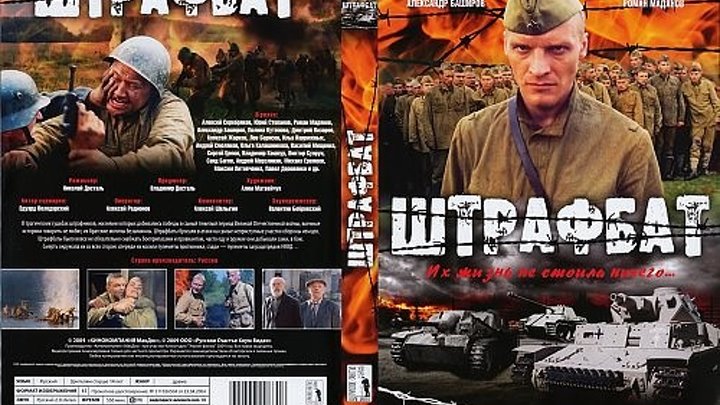 8:05:56
2017-07-08 19:33
2023-05-31 14:59
 57:36
57:36
2024-11-13 13:06
 45:14
45:14
2020-04-22 20:10
 51:49
51:49
2022-09-14 19:48
 3:09:06
2025-12-26 16:56
 1:51:51
2026-05-06 10:53
 3:16:51
2025-10-03 19:48
 3:25:27
2025-01-24 05:04
 2:22:56
2023-04-25 23:06
 2:52:30
2025-01-13 14:00
 2:48:18
2026-04-24 09:34
 1:29:27
2026-04-20 10:31
 3:16
3:16
2023-10-13 14:26
 59:17
59:17
2026-02-01 14:02
 1:30:27
2025-04-04 18:26
 2:54:39
2022-03-11 11:17
0/0