

 1:21
1:21
2024-05-22 19:03
 1:20:35
1:20:35
2026-06-19 14:03
 2:00:54
2:00:54
2025-08-07 19:38
 2:10:07
2:10:07
2026-04-13 00:10
 1:57:08
1:57:08
2024-02-15 20:46
 2:40:57
2:40:57
2025-12-17 16:07
 46:13
46:13
46:13
2026-06-17 21:30
 49:08
49:08
49:08
2025-11-03 06:50
 1:35:25
1:35:25
2026-04-26 20:10
 37:59
37:59
37:59
2026-06-19 17:31
 1:32:16
1:32:16
2024-01-15 17:08
 1:58:08
1:58:08
2026-06-08 18:00
 1:33:22
1:33:22
2026-06-19 12:12
 1:27:56
1:27:56
2024-10-18 12:57
 1:07:03
1:07:03
2026-06-08 16:50
 1:24:30
1:24:30
2026-06-19 05:00
 1:50:05
1:50:05
2026-06-18 18:25
![Света Рассталась с Парнем, Нашла Себе Нового Бойфренда и Поссорилась с Друзьями!]() 57:21
57:21
![Жасмин - Какое счастье (Премьера клипа 2026)]() 3:35
3:35
![Рейсан Магомедкеримов - Роза алая (Премьера клипа 2026)]() 3:52
3:52
![Соня Белькевич - Давай, танцуй (Премьера клипа 2026)]() 3:40
3:40
![Mavik, Лолита - Журналистка (Премьера клипа 2026)]() 2:46
2:46
![Рустам Батербиев - Обернись (Премьера клипа 2026)]() 2:47
2:47
![Ярослав Леонов - Майская роза (Премьера клипа 2026)]() 3:14
3:14
![KIDA - MENIME (Official Video 2026)]() 2:44
2:44
![Соня Белькевич, КРЕСТОВ - Станцуем (Премьера клипа 2026)]() 3:25
3:25
![Группа КАРОЛИНА - Розовые краски (Премьера клипа 2026)]() 4:06
4:06
![Руслан Шанов, Amina T - Не верну я (Премьера клипа 2026)]() 2:31
2:31
![SEREBRO - Мало огня (Премьера клипа 2026)]() 1:52
1:52
![Артур Халатов - Покайфуем (Премьера клипа 2026)]() 3:40
3:40
![Артур Бесаев - Словно волк (Премьера клипа 2026)]() 3:32
3:32
![Xhensila – Gjuma (Official Video 2026)]() 2:18
2:18
![Murat Gamidov - По ночам (Премьера клипа 2026)]() 2:53
2:53
![Сергей Одинцов - Моя недотрога (Премьера клипа 2026)]() 3:40
3:40
![Бахтавар - Бизнес Леди (Премьера клипа 2026)]() 2:28
2:28
![Юлия Имранова - Держи меня за руку (Премьера клипа 2026)]() 3:30
3:30
![Ислам Итляшев - Ай да она (Премьера клипа 2026)]() 3:02
3:02
![Джатдай - Болит моя душа (Премьера клипа 2026)]() 2:14
2:14
![Зараза | Cold Storage (2025)]() 1:39:05
1:39:05
![Сестра | Siseuteo (2026)]() 1:26:45
1:26:45
![Последствия | Outcome (2026)]() 1:23:53
1:23:53
![Удачи, веселья, не сдохни | Good Luck, Have Fun, Don't Die (2025)]() 2:14:31
2:14:31
![Напоминание о нём | Reminders of Him (2026)]() 1:54:16
1:54:16
![Компаньон | Companion (2025)]() 1:37:08
1:37:08
![Пицца фильм | Pizza Movie (2026)]() 1:37:12
1:37:12
![В чужой шкуре | Swapped (2026)]() 1:41:49
1:41:49
![Тайны моей сестры | My Sister's Bones (2026)]() 1:21:23
1:21:23
![Частная жизнь | Vie privée (2025)]() 1:47:21
1:47:21
![Мать Мария | Mother Mary (2026)]() 1:51:42
1:51:42
![Трон: Арес | Tron: Ares (2025)]() 1:52:27
1:52:27
![Я иду искать 2 | Ready or Not 2: Here I Come (2026)]() 1:47:56
1:47:56
![Сначала дамы | Ladies First (2026)]() 1:33:24
1:33:24
![Нескромные | Splitsville (2025)]() 1:44:43
1:44:43
![Эта штука работает? | Is This Thing On? (2026)]() 2:00:44
2:00:44
![Острые козырьки: Бессмертный человек | Peaky Blinders: The Immortal Man (2026)]() 1:54:08
1:54:08
![Хокум | Hokum (2026)]() 1:47:20
1:47:20
![Обитель зла 4: Жизнь после смерти 3D | Resident Evil: Afterlife (2010)]() 1:37:36
1:37:36
![Микки 17 | Mickey 17 (2025)]() 2:16:60
2:16:60
![Новое ПРОСТОКВАШИНО]() 6:30
6:30
![Рэй и пожарный патруль Сезон 1]() 13:27
13:27
![Маленькая Кэрри – большие вопросы]() 0:49
0:49
![Сандра - сказочный детектив Сезон 1]() 13:52
13:52
![Киддеты]() 0:41
0:41
![МиниФорс Сезон 1]() 13:12
13:12
![Синдбад и семь галактик Сезон 1]() 10:23
10:23
![Псэмми. Пять детей и волшебство Сезон 1]() 12:17
12:17
![Сборники «Оранжевая корова»]() 1:05:17
1:05:17
![Хвостатые песенки]() 7:00
7:00
![Корги по имени Моко. Домашние животные]() 1:13
1:13
![Богатырята]() 11:00
11:00
![Агент 203]() 21:08
21:08
![Мультфильмы военных лет | Специальный проект к 80-летию Победы]() 7:20
7:20
![Пип и Альба. Приключения в Соленой Бухте! Сезон 1]() 11:02
11:02
![Паровозик Титипо]() 13:42
13:42
![Зомби Дамб]() 5:14
5:14
![Кэрри и Супер Кола]() 1:08
1:08
![Пиратская школа]() 11:06
11:06
![Команда Дино. Исследователи Сезон 1]() 13:10
13:10
![Клипы 90-х. Русский сборник хитов]() 1:29:27
1:29:27
![Гордость и предубеждение | Pride & Prejudice (2005)]() 2:08:21
2:08:21
![Лучшие в Аду (2022)]() 1:49:08
1:49:08
![Сборник Синий Трактор]() 57:36
57:36
![Лунтик | Танцы 💃💃💃 Сборник мультиков для детей]() 46:30
46:30
![Форсаж 9 | F9 (2021)]() 2:22:56
2:22:56
![Женщина лёгкого похудения - Уральские Пельмени]() 1:12:19
1:12:19
![Три Кота 🐱 Сборник серий подряд | Смотреть онлайн развивающие мультики и игры для детей и малышей]() 3:16:51
3:16:51
![Jazzdauren - Дарите женщинам цветы]() 3:09
3:09
![_*ДискотекА 80-90х ВиДео АлЬбом Лучшие.*_]() 2:40:60
2:40:60
![Дьявол носит Prada | The Devil Wears Prada (2006)]() 1:49:29
1:49:29
![ТОП ЛУЧШИХ КЛИПОВ ШАНСОНА - Слушать шансон лучшее.]() 3:48:45
3:48:45
![КАМИН 4К 🔥 FIREPLACE 4K | Звуки камина и Треск огня]() 2:00:00
2:00:00
![Винни-Пух. 1969 год.]() 41:23
41:23
![Штрафбат(1-11 серии) HD 2004]() 8:05:56
8:05:56
![Лева Грузовичок все серии]() 43:59
43:59
![Бандитский Петербург. Все серии подряд. 60fps]() 66:54:01
66:54:01
![Рыцарь семи королевств. Все серии]() 3:28:06
3:28:06
![Сборник Новогодняя Десятка - Уральские Пельмени]() 1:19:08
1:19:08
![Ми–Ми–Мишки 💫 Звездная история 🙃 Все серии ✨ Мультики для детей]() 2:10:31
2:10:31
 57:21
57:21


Скачать Видео с Рутуба по ссылке
| 256x144 | ||
| 426x240 | ||
| 640x360 | ||
| 854x480 |
 3:35
3:35
2026-05-16 13:07
 3:52
3:52
2026-05-09 18:11
 3:40
3:40
2026-05-22 10:17
 2:46
2:46
2026-05-23 16:52
 2:47
2:47
2026-05-26 11:05
 3:14
3:14
2026-05-02 00:31
 2:44
2:44
2026-05-10 12:47
 3:25
3:25
2026-04-30 11:44
 4:06
4:06
2026-05-24 15:36
 2:31
2:31
2026-05-16 13:10
 1:52
1:52
2026-05-15 13:19
 3:40
3:40
2026-05-16 13:14
 3:32
3:32
2026-05-21 11:40
 2:18
2:18
2026-05-10 12:39
 2:53
2:53
2026-05-21 14:27
 3:40
3:40
2026-05-15 10:04
 2:28
2:28
2026-06-11 11:23
 3:30
3:30
2026-05-26 11:32
 3:02
3:02
2026-06-18 15:43
 2:14
2:14
2026-05-10 15:00
0/0
 1:39:05
2026-05-07 15:06
 1:26:45
2026-03-27 13:34
 1:23:53
2026-04-17 14:43
 2:14:31
2026-03-12 23:32
 1:54:16
2026-05-28 20:15
 1:37:08
2026-05-07 15:10
 1:37:12
2026-04-06 12:20
 1:41:49
2026-05-06 10:44
 1:21:23
2026-05-28 20:15
 1:47:21
2026-04-09 22:40
 1:51:42
2026-05-26 13:06
 1:52:27
2026-05-20 08:38
 1:47:56
2026-04-12 17:20
 1:33:24
2026-05-27 11:57
 1:44:43
2026-04-09 22:40
 2:00:44
2026-05-04 16:12
 1:54:08
2026-04-13 12:20
 1:47:20
2026-06-04 13:05
 1:37:36
2026-06-01 17:18
 2:16:60
2026-05-07 15:07
0/0
 6:30
6:30
2018-04-03 10:35
2021-09-22 23:51
2026-04-01 10:54
2021-09-22 20:39
 0:41
0:41
2026-05-07 15:39
2021-09-23 00:15
2021-09-22 23:09
2021-09-22 22:23
 1:05:17
2025-07-15 11:22
 7:00
7:00
2025-06-01 11:15
 1:13
1:13
2024-11-29 14:40
 11:00
11:00
2026-04-23 16:13
 21:08
21:08
2025-01-09 16:39
 7:20
7:20
2025-05-03 12:34
2021-09-22 23:36
 13:42
13:42
2024-11-28 14:12
 5:14
5:14
2024-11-28 13:12
 1:08
1:08
2026-05-18 16:32
 11:06
11:06
2022-04-01 15:56
2021-09-22 22:45
0/0
 1:29:27
2024-01-12 11:40
 2:08:21
2023-05-03 20:56
 1:49:08
2022-10-20 11:01
 57:36
57:36
2024-11-13 13:06
 46:30
46:30
2024-08-05 22:22
 2:22:56
2023-04-25 23:06
 1:12:19
2025-04-18 22:01
 3:16:51
2025-10-03 19:48
 3:09
3:09
2024-05-30 14:13
 2:40:60
2024-03-18 17:25
 1:49:29
2023-04-27 15:40
2026-02-02 14:57
 2:00:00
2024-12-19 00:00
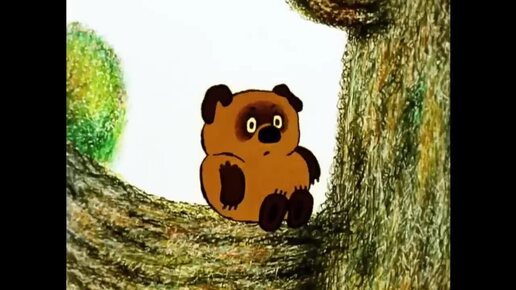 41:23
41:23
2023-11-19 12:01
 8:05:56
2017-07-08 19:33
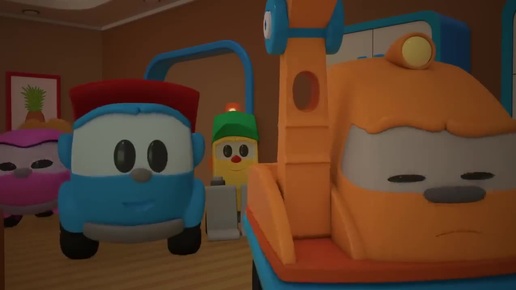 43:59
43:59
2022-09-16 07:26
2023-05-15 17:30
 3:28:06
2026-02-24 11:12
 1:19:08
2026-01-01 13:59
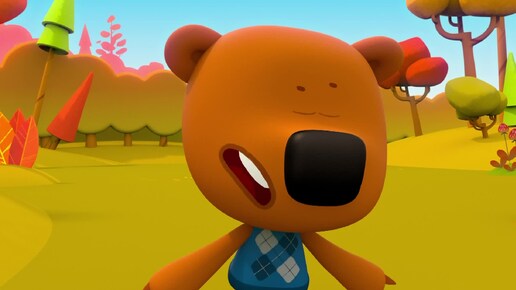 2:10:31
2024-01-17 17:34
0/0