

 1:58:05
2026-03-22 21:00
 11:57:38
11:57:38
2025-04-23 06:55
 2:12:41
2:12:41
2023-10-02 21:24
 3:01:48
3:01:48
2024-02-09 03:39
 2:40:57
2:40:57
2025-12-17 16:07
 1:37:30
1:37:30
2024-02-14 19:09
 3:12:39
3:12:39
2023-12-21 11:54
 11:45:05
11:45:05
2025-05-09 07:43
 2:28:12
2:28:12
2025-06-19 15:00
 2:35:50
2:35:50
2025-10-30 18:00
 6:36:29
6:36:29
2024-10-26 04:51
 1:36:01
1:36:01
2023-10-15 18:22
 2:29:19
2:29:19
2025-10-01 19:29
 2:37:06
2:37:06
2025-12-17 16:07
 1:37:38
1:37:38
2025-06-08 04:36
 11:12:46
11:12:46
2025-10-22 07:33
 1:36:54
1:36:54
2025-08-05 19:00
 4:23:18
![Группа Без игрушек - Диско-шар (Премьера клипа 2026)]() 2:10
2:10
![Дискотека Авария - Мультивитамин (Премьера клипа 2026)]() 3:05
3:05
![Хилола Хамидова - Хафа-Хафа (Премьера клипа 2026)]() 4:32
4:32
![Zhamil Turan - Осколки (Премьера клипа 2026)]() 3:33
3:33
![Саша Санта, Диана Верди - Не набирай (Премьера клипа 2026)]() 3:50
3:50
![SHAXO - Дорога в аэропорт (Премьера клипа 2026)]() 3:27
3:27
![Dilnoz - Dilbarim (Official Video 2026)]() 6:03
6:03
![Камилла - Эти глаза (Премьера клипа 2026)]() 2:44
2:44
![Надежда Мельянцева – Человеку нужно (Премьера клипа 2026)]() 3:23
3:23
![Elsandobry - Твои глаза (Премьера клипа 2026)]() 2:54
2:54
![MILANA STAR - Стрелочки (Премьера клипа 2026)]() 2:34
2:34
![Zhamil Turan - Оденьте женщину в любовь (Премьера клипа 2026)]() 3:23
3:23
![Рустам Батербиев - Только ты виновата (Премьера клипа 2026)]() 3:31
3:31
![Кирилл Туриченко - Королева любви (Премьера клипа 2026)]() 2:46
2:46
![Андрей Храмов - О тебе (Премьера клипа 2026)]() 3:14
3:14
![Артур Бесаев - PIN-КОД (Премьера клипа 2026)]() 3:52
3:52
![Дилрабохоним Гофурбекова - Келиб турсам майлими Ота (Премьера клипа 2026)]() 5:22
5:22
![CHEPIKK - 5 минут назад (Премьера 2026)]() 3:09
3:09
![ALEX ANDREEV, ILONA - Глючит (Премьера 2026)]() 3:08
3:08
![Cvetocek7 - Пленница (Премьера клипа 2026)]() 2:34
2:34
![Анаконда | Anaconda (2025)]() 1:38:55
1:38:55
![Опасные связи | Bone Lake (2025)]() 1:30:07
1:30:07
![Миссия невыполнима: Финальная расплата | Mission: Impossible - The Final Reckoning (2025)]() 2:52:58
2:52:58
![Кровь на границе | Frontier Crucible (2025)]() 2:04:36
2:04:36
![Обитель зла: Возмездие | Resident Evil: Retribution (2012)]() 1:35:41
1:35:41
![Дом у дороги | Road House (2024)]() 2:03:29
2:03:29
![Идеальная афера | Wildcat (2025)]() 1:39:16
1:39:16
![Обитель зла 2: Апокалипсис | Resident Evil: Apocalypse (2004)]() 1:37:50
1:37:50
![Элементарно | Elemental (2023)]() 1:41:31
1:41:31
![Примат | Primate (2025)]() 1:32:11
1:32:11
![Пункт назначения: Узы крови | Final Destination: Bloodlines (2025)]() 1:49:52
1:49:52
![Zомбилэнд: Контрольный выстрел | Zombieland: Double Tap (2019)]() 1:39:05
1:39:05
![Побег из плена | Prisoner of War (2025)]() 1:52:58
1:52:58
![Крипер | Keeper (2025)]() 1:38:41
1:38:41
![Без обид | No Hard Feelings (2023)]() 1:43:51
1:43:51
![Охотник и охотница | Hunting Grounds (2025)]() 1:29:24
1:29:24
![Точка замерзания | Dead of Winter (2025)]() 1:37:45
1:37:45
![Острые козырьки: Бессмертный человек | Peaky Blinders: The Immortal Man (2026)]() 1:54:08
1:54:08
![Одинокие волки | Wolfs (2024)]() 1:47:12
1:47:12
![Лакомый кусок | The Rip (2025)]() 1:52:50
1:52:50
![Тайны Медовой долины]() 7:01
7:01
![Сборники «Простоквашино»]() 1:05:50
1:05:50
![Чуч-Мяуч]() 7:04
7:04
![Рэй и пожарный патруль Сезон 1]() 13:27
13:27
![Корги по имени Моко. Волшебный мир снов]() 8:60
8:60
![Люк - путешественник во времени]() 1:19:50
1:19:50
![Зомби Дамб]() 5:14
5:14
![Мультфильмы военных лет | Специальный проект к 80-летию Победы]() 7:20
7:20
![Корги по имени Моко. Домашние животные]() 1:13
1:13
![Приключения Тайо]() 12:50
12:50
![Новое ПРОСТОКВАШИНО]() 6:30
6:30
![Отважные мишки]() 13:00
13:00
![Оранжевая корова]() 6:30
6:30
![Паровозик Титипо]() 13:42
13:42
![Лудлвилль]() 7:05
7:05
![Приключения Пети и Волка]() 11:00
11:00
![Панда и петушок Лука]() 12:12
12:12
![Папа Супергерой Сезон 1]() 4:28
4:28
![Школьный автобус Гордон]() 12:34
12:34
![Команда Дино Сезон 1]() 12:08
12:08
![Снова в деле (2025) Netflix]() 1:54:23
1:54:23
![Ну, погоди!]() 3:21:43
3:21:43
![Инна Вальтер - Дымом лечилась (Исповедь хулиганки)]() 7:04
7:04
![Лучшие в Аду (2022)]() 1:49:08
1:49:08
![MAUR - Полетела (Премьера клипа 2025)]() 2:53
2:53
![Дьявол носит Prada | The Devil Wears Prada (2006)]() 1:49:29
1:49:29
![Спартак: Дом Ашура. 1 сезон, 1 серия]() 58:27
58:27
![Рыцарь семи королевств. Все серии]() 3:28:06
3:28:06
![ХИТЫ 2025 ТАНЦЕВАЛЬНАЯ МУЗЫКА СБОРНИК]() 1:41:18
1:41:18
![Аватар 3: Пламя и пепел фильм, 2025]() 3:09:06
3:09:06
![Лунтик | Танцы 💃💃💃 Сборник мультиков для детей]() 46:30
46:30
![Смешарики (большой сборник)]() 3:25:27
3:25:27
![Форсаж 6 | Furious 6 (2013)]() 2:11:07
2:11:07
![Барбоскины. Сезон 1. Серия 1. Пчёлка]() 5:38
5:38
![КАМИН 4К 🔥 FIREPLACE 4K | Звуки камина и Треск огня]() 2:00:00
2:00:00
![Пять ночей с Фредди 2 | Five Nights at Freddy's 2 (2025)]() 1:44:11
1:44:11
![КЛИПЫ 80-90 х - ЗОЛОТЫЕ ХИТЫ - ЛЮБИМЫЕ ПЕСНИ]() 2:07:05
2:07:05
![Кей-поп-охотницы на демонов | KPop Demon Hunters (2025)]() 1:39:41
1:39:41
![Bakhtin - Целовала (Премьера клипа 2023)]() 3:16
3:16
![Зверополис | Zootopia (2016)]() 1:48:48
1:48:48
4:23:18

Скачать Видео с Рутуба / RuTube
| 256x144 | ||
| 1920x1080 |
 2:10
2:10
2026-03-20 13:23
 3:05
3:05
2026-03-20 13:04
 4:32
4:32
2026-03-14 12:16
 3:33
3:33
2026-03-26 13:34
 3:50
3:50
2026-03-26 12:28
 3:27
3:27
2026-03-17 18:55
 6:03
6:03
2026-03-14 12:20
 2:44
2:44
2026-03-19 12:51
 3:23
3:23
2026-03-13 11:40
 2:54
2:54
2026-03-14 14:48
 2:34
2:34
2026-03-20 13:11
 3:23
3:23
2026-03-06 13:58
 3:31
3:31
2026-03-19 13:27
 2:46
2:46
2026-03-09 10:49
 3:14
3:14
2026-03-20 13:31
 3:52
3:52
2026-03-18 11:59
 5:22
5:22
2026-03-14 12:07
 3:09
3:09
2026-03-14 14:36
 3:08
3:08
2026-03-18 10:16
 2:34
2:34
2026-03-25 14:56
0/0
 1:38:55
2026-01-28 12:07
 1:30:07
2026-02-06 18:40
 2:52:58
2026-01-23 19:12
 2:04:36
2026-01-26 14:34
 1:35:41
2026-02-25 19:41
 2:03:29
2026-02-27 09:42
 1:39:16
2026-03-06 18:16
 1:37:50
2026-02-25 19:41
 1:41:31
2026-01-23 18:43
 1:32:11
2026-02-17 21:38
 1:49:52
2026-01-23 18:44
 1:39:05
2026-02-16 01:07
 1:52:58
2026-01-26 14:34
 1:38:41
2026-03-06 19:13
 1:43:51
2026-01-23 18:44
 1:29:24
2026-02-06 18:40
 1:37:45
2026-01-26 14:35
 1:54:08
2026-03-26 16:26
 1:47:12
2026-01-23 18:43
 1:52:50
2026-02-04 10:11
0/0
 7:01
7:01
2022-03-30 17:25
 1:05:50
2026-03-05 14:34
 7:04
7:04
2022-03-29 15:20
2021-09-22 23:51
 8:60
8:60
2025-12-09 11:58
 1:19:50
2024-12-17 16:00
 5:14
5:14
2024-11-28 13:12
 7:20
7:20
2025-05-03 12:34
 1:13
1:13
2024-11-29 14:40
 12:50
12:50
2024-12-17 13:25
 6:30
6:30
2018-04-03 10:35
 13:00
13:00
2024-11-29 13:39
 6:30
6:30
2022-03-31 18:49
 13:42
13:42
2024-11-28 14:12
 7:05
7:05
2025-12-30 20:49
 11:00
11:00
2022-04-01 17:59
 12:12
12:12
2024-11-29 14:21
2021-09-22 21:52
 12:34
12:34
2024-12-02 14:42
2021-09-22 22:29
0/0
 1:54:23
2025-01-18 20:05
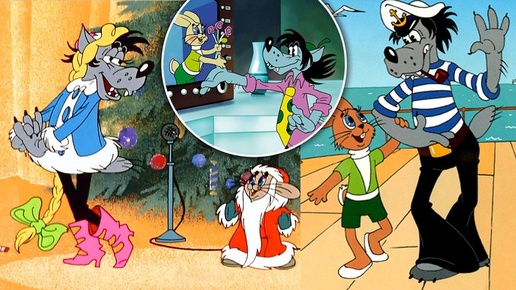 3:21:43
2024-08-29 02:17
 7:04
7:04
2018-07-11 11:26
 1:49:08
2022-10-20 11:01
 2:53
2:53
2025-04-24 09:53
 1:49:29
2023-04-27 15:40
 58:27
58:27
2025-12-08 12:06
 3:28:06
2026-02-24 11:12
2024-06-25 00:21
 3:09:06
2025-12-26 16:56
 46:30
46:30
2024-08-05 22:22
 3:25:27
2025-01-24 05:04
 2:11:07
2023-04-25 22:52
 5:38
5:38
2023-12-25 15:26
 2:00:00
2024-12-19 00:00
 1:44:11
2025-12-25 22:29
2023-05-31 14:59
 1:39:41
2025-10-29 16:30
 3:16
3:16
2023-10-13 14:26
 1:48:48
2024-12-16 19:01
0/0