

 4:36
4:36
2023-09-19 13:16
 4:38
4:38
4:38
2023-12-12 04:01
 1:58:05
1:58:05
2026-03-22 21:00
 11:57:38
11:57:38
2025-04-23 06:55
 2:28:12
2:28:12
2025-06-19 15:00
 6:36:29
6:36:29
2024-10-26 04:51
 1:13:45
1:13:45
2026-03-21 13:47
 2:12:41
2:12:41
2023-10-02 21:24
 3:01:48
3:01:48
2024-02-09 03:39
 11:45:05
11:45:05
2025-05-09 07:43
 4:23:18
4:23:18
2024-02-16 17:06
 2:29:19
2:29:19
2025-10-01 19:29
 3:50:16
3:50:16
2024-08-19 15:47
 1:55:32
1:55:32
2026-03-22 11:56
 3:48:19
3:48:19
2024-10-22 17:00
 2:40:56
2:40:56
2023-09-10 18:55
 2:48:30
2:48:30
2023-12-23 12:24
 2:36:56
![Cvetocek7 - Пленница (Премьера клипа 2026)]() 2:34
2:34
![ALEX ANDREEV, ILONA - Глючит (Премьера 2026)]() 3:08
3:08
![Ислам Итляшев - Непредсказуемая (Премьера клипа 2026)]() 2:52
2:52
![Артур Бесаев - PIN-КОД (Премьера клипа 2026)]() 3:52
3:52
![SVETLAYA - А и я (Премьера 2026)]() 2:18
2:18
![Алсу, Ева Власова - Белая фата (Премьера клипа 2026)]() 3:05
3:05
![Мурат Гамидов - Вопрос (Премьера клипа 2026)]() 2:14
2:14
![Камилла - Эти глаза (Премьера клипа 2026)]() 2:44
2:44
![Игорь Кибирев - За далью дней (Премьера клипа 2026)]() 3:45
3:45
![Zhamil Turan - Осколки (Премьера клипа 2026)]() 3:33
3:33
![NAIMAN - Заберу (Премьера клипа 2026)]() 2:32
2:32
![Алексей Новиков - Проводница (Премьера клипа 2026)]() 4:36
4:36
![Женя Белоусова - Я за тобой пойду (Премьера клипа 2026)]() 3:12
3:12
![Алекс Ч - Молчи женщина, твой день 8 марта]() 3:35
3:35
![Райхон - Дил поралар (Премьера клипа 2026)]() 3:33
3:33
![Ваня Дмитриенко - Ртуть (Премьера 2026)]() 3:14
3:14
![CHEPIKK - 5 минут назад (Премьера 2026)]() 3:09
3:09
![Рейсан Магомедкеримов - Баловала (Премьера клипа 2026)]() 3:27
3:27
![Ойдин Жураева - Севги дея (Премьера клипа 2026)]() 3:40
3:40
![SHAXO - Дорога в аэропорт (Премьера клипа 2026)]() 3:27
3:27
![Грандиозная подделка | Il falsario (2025)]() 1:55:41
1:55:41
![Удачи, веселья, не сдохни | Good Luck, Have Fun, Don't Die (2025)]() 2:14:31
2:14:31
![Обитель зла 2: Апокалипсис | Resident Evil: Apocalypse (2004)]() 1:37:50
1:37:50
![Давид | David (2025)]() 1:49:18
1:49:18
![Спрингстин. Избавь меня от небытия | Springsteen: Deliver Me from Nowhere (2025)]() 1:59:36
1:59:36
![Миссия невыполнима: Финальная расплата | Mission: Impossible - The Final Reckoning (2025)]() 2:52:58
2:52:58
![Безымянная романтическая история о вторжении в дом | Untitled Home Invasion Romance (2025)]() 1:25:48
1:25:48
![Джо едет в колледж | Joe's College Road Trip (2026)]() 1:51:29
1:51:29
![Идеальная афера | Wildcat (2025)]() 1:39:16
1:39:16
![Точка замерзания | Dead of Winter (2025)]() 1:37:45
1:37:45
![Без обид | No Hard Feelings (2023)]() 1:43:51
1:43:51
![Побег из плена | Prisoner of War (2025)]() 1:52:58
1:52:58
![Пункт назначения: Узы крови | Final Destination: Bloodlines (2025)]() 1:49:52
1:49:52
![Завещание Анны Ли | The Testament of Ann Lee (2025)]() 2:16:48
2:16:48
![Обитель зла: Последняя глава | Resident Evil: The Final Chapter (2016)]() 1:46:38
1:46:38
![В мгновение ока | In the Blink of an Eye (2026)]() 1:34:15
1:34:15
![Элла Маккей | Ella McCay (2025)]() 1:54:47
1:54:47
![Примат | Primate (2025)]() 1:32:11
1:32:11
![Лакомый кусок | The Rip (2025)]() 1:52:50
1:52:50
![Дикий робот | The Wild Robot (2024)]() 1:41:50
1:41:50
![Мотофайтеры]() 13:10
13:10
![Поймай Тинипин! Королевство эмоций]() 12:24
12:24
![МиниФорс Сезон 1]() 13:12
13:12
![Тайны Медовой долины]() 7:01
7:01
![Команда Дино Сезон 2]() 12:31
12:31
![МегаМен: Полный заряд Сезон 1]() 10:42
10:42
![Шахерезада. Нерассказанные истории Сезон 1]() 23:53
23:53
![Корги по имени Моко. Домашние животные]() 1:13
1:13
![Панда и Антилопа]() 12:08
12:08
![Чуч-Мяуч]() 7:04
7:04
![Пиратская школа]() 11:06
11:06
![Зебра в клеточку]() 6:30
6:30
![Команда Дино. Исследователи Сезон 1]() 13:10
13:10
![Простоквашино]() 6:30
6:30
![Тодли Великолепный!]() 3:15
3:15
![Неодети]() 11:27
11:27
![Лудлвилль]() 7:05
7:05
![Псэмми. Пять детей и волшебство Сезон 1]() 12:17
12:17
![Паровозик Титипо]() 13:42
13:42
![Приключения Тайо]() 12:50
12:50
![Премьера: Предательство - фильм Андрея Медведева от 01.02.2026]() 59:17
59:17
![Штрафбат(1-11 серии) HD 2004]() 8:05:56
8:05:56
![Лучшие в Аду (2022)]() 1:49:08
1:49:08
![Сборник Синий Трактор]() 57:36
57:36
![КЛИПЫ 80-90 х - ЗОЛОТЫЕ ХИТЫ - ЛЮБИМЫЕ ПЕСНИ]() 2:07:05
2:07:05
![Аватар 3: Пламя и пепел фильм, 2025]() 3:09:06
3:09:06
![Домовенок Кузя [HD] 2025]() 1:29:43
1:29:43
![Франкенштейн | Frankenstein (2025)]() 2:32:29
2:32:29
![Максим ФАДЕЕВ feat. Григорий ЛЕПС - Орлы или вороны ft.и]() 4:38
4:38
![Инна Вальтер - Дымом лечилась (Исповедь хулиганки)]() 7:04
7:04
![Дева и дракон | Damsel (2024)]() 1:49:38
1:49:38
![MAUR - Полетела (Премьера клипа 2025)]() 2:53
2:53
![Рыцарь семи королевств. Все серии]() 3:28:06
3:28:06
![Ну, погоди!]() 3:21:43
3:21:43
![Спартак: Дом Ашура. 1 сезон, 1 серия]() 58:27
58:27
![Форсаж 6 | Furious 6 (2013)]() 2:11:07
2:11:07
![Пять ночей с Фредди 2 | Five Nights at Freddy's 2 (2025)]() 1:44:11
1:44:11
![Свои. Баллада о войне [2025, драма, военный]]() 1:29:27
1:29:27
![ANNA ASTI - ЦАРИЦА ( Премьера клипа 2023 )]() 4:01
4:01
![Винни-Пух. 1969 год.]() 41:23
41:23
2:36:56

Скачать Видео с Рутуба / RuTube
| 256x144 | ||
| 426x240 | ||
| 640x360 | ||
| 854x480 | ||
| 1280x720 | ||
| 1920x1080 |
 2:34
2:34
2026-03-25 14:56
 3:08
3:08
2026-03-18 10:16
 2:52
2:52
2026-03-24 15:20
 3:52
3:52
2026-03-18 11:59
 2:18
2:18
2026-03-14 12:02
2026-03-24 10:53
 2:14
2:14
2026-03-18 10:24
 2:44
2:44
2026-03-19 12:51
 3:45
3:45
2026-03-24 15:40
 3:33
3:33
2026-03-26 13:34
 2:32
2:32
2026-03-24 15:07
 4:36
4:36
2026-03-24 14:45
 3:12
3:12
2026-03-17 19:05
 3:35
3:35
2026-03-08 10:08
 3:33
3:33
2026-03-25 15:20
 3:14
3:14
2026-03-20 13:35
 3:09
3:09
2026-03-14 14:36
 3:27
3:27
2026-03-13 10:56
2026-03-24 11:02
 3:27
3:27
2026-03-17 18:55
0/0
 1:55:41
2026-02-26 14:41
 2:14:31
2026-03-12 23:32
 1:37:50
2026-02-25 19:41
 1:49:18
2026-01-29 11:25
 1:59:36
2026-02-13 14:02
 2:52:58
2026-01-23 19:12
 1:25:48
2026-02-26 14:41
 1:51:29
2026-02-26 14:41
 1:39:16
2026-03-06 18:16
 1:37:45
2026-01-26 14:35
 1:43:51
2026-01-23 18:44
 1:52:58
2026-01-26 14:34
 1:49:52
2026-01-23 18:44
 2:16:48
2026-03-12 23:31
 1:46:38
2026-02-25 19:41
 1:34:15
2026-03-01 21:54
 1:54:47
2026-02-11 21:47
 1:32:11
2026-02-17 21:38
 1:52:50
2026-02-04 10:11
 1:41:50
2026-01-23 18:44
0/0
 13:10
13:10
2024-11-27 14:57
 12:24
12:24
2024-11-27 13:24
2021-09-23 00:15
 7:01
7:01
2022-03-30 17:25
2021-09-22 22:40
2021-09-22 21:43
2021-09-22 23:25
 1:13
1:13
2024-11-29 14:40
 12:08
12:08
2025-06-10 14:59
 7:04
7:04
2022-03-29 15:20
 11:06
11:06
2022-04-01 15:56
 6:30
6:30
2022-03-31 13:09
2021-09-22 22:45
 6:30
6:30
2022-03-30 13:57
 3:15
3:15
2025-06-10 13:56
 11:27
11:27
2025-10-10 18:25
 7:05
7:05
2025-12-30 20:49
2021-09-22 22:23
 13:42
13:42
2024-11-28 14:12
 12:50
12:50
2024-12-17 13:25
0/0
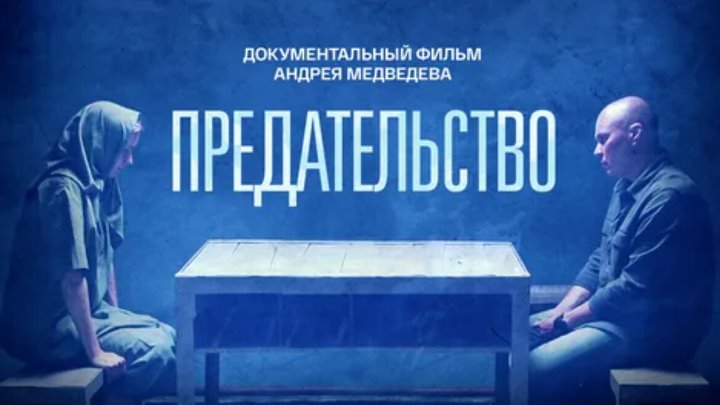 59:17
59:17
2026-02-01 14:02
 8:05:56
2017-07-08 19:33
 1:49:08
2022-10-20 11:01
 57:36
57:36
2024-11-13 13:06
2023-05-31 14:59
 3:09:06
2025-12-26 16:56
![Домовенок Кузя [HD] 2025](https://avatars.dzeninfra.ru/get-zen_doc/271828/pub_67c41a33e447d23fbeac22cc_67c41a814f1bf2213084915d/smart_crop_516x290) 1:29:43
1:29:43
2025-03-02 11:56
 2:32:29
2025-11-17 11:22
 4:38
4:38
2017-12-19 08:20
 7:04
7:04
2018-07-11 11:26
 1:49:38
2024-03-12 00:19
 2:53
2:53
2025-04-24 09:53
 3:28:06
2026-02-24 11:12
 3:21:43
2024-08-29 02:17
 58:27
58:27
2025-12-08 12:06
 2:11:07
2023-04-25 22:52
 1:44:11
2025-12-25 22:29
2025-04-11 14:51
 4:01
4:01
2023-10-12 11:54
 41:23
41:23
2023-11-19 12:01
0/0