

 1:58:05
2026-03-22 21:00
 11:57:38
11:57:38
2025-04-23 06:55
 1:00:45
1:00:45
2025-07-26 16:00
 23:59:48
23:59:48
2026-03-24 18:13
 1:13:45
1:13:45
2026-03-21 13:47
 4:23:18
4:23:18
2024-02-16 17:06
 11:51:08
11:51:08
2025-12-05 07:23
 6:36:29
6:36:29
2024-10-26 04:51
 2:12:41
2:12:41
2023-10-02 21:24
 2:28:12
2:28:12
2025-06-19 15:00
 1:55:32
1:55:32
2026-03-22 11:56
 1:37:38
1:37:38
2026-03-23 11:27
 2:31:42
2:31:42
2024-12-27 18:26
 2:40:56
2:40:56
2023-09-10 18:55
 3:01:48
3:01:48
2024-02-09 03:39
 7:19:60
7:19:60
2025-02-28 10:12
 10:48:01
10:48:01
2024-12-27 09:12
 3:48:19
![Elsandobry - Твои глаза (Премьера клипа 2026)]() 2:54
2:54
![Дана Лахова - Кабриолет (Видеоальбом 2026)]() 27:12
27:12
![Дилрабохоним Гофурбекова - Келиб турсам майлими Ота (Премьера клипа 2026)]() 5:22
5:22
![Ahmed Shad - Девки (Премьера клипа 2026)]() 2:41
2:41
![Руслан Шанов - Это не любовь (Премьера клипа 2026)]() 3:22
3:22
![Фати Царикаева - Ревность (Премьера клипа 2026)]() 3:27
3:27
![Ахрор Гуломов - Телба (Премьера клипа 2026)]() 5:08
5:08
![Артур Бесаев - PIN-КОД (Премьера клипа 2026)]() 3:52
3:52
![MILANA STAR - Стрелочки (Премьера клипа 2026)]() 2:34
2:34
![Андрей Храмов - О тебе (Премьера клипа 2026)]() 3:14
3:14
![Бьянка & ЗОМБ - Вызов (Премьера клипа 2026)]() 2:59
2:59
![ALEX ANDREEV, ILONA - Глючит (Премьера 2026)]() 3:08
3:08
![Алмас Багратиони - Я лев (Премьера клипа 2026)]() 2:30
2:30
![EDGAR - Букет из розовых тюльпанов (Премьера клипа 2026)]() 3:50
3:50
![NAIMAN - Заберу (Премьера клипа 2026)]() 2:32
2:32
![Алексей Новиков - Проводница (Премьера клипа 2026)]() 4:36
4:36
![Зиёда - Кура олмаймиз (Премьера клипа 2026)]() 3:36
3:36
![CHEPIKK - 5 минут назад (Премьера 2026)]() 3:09
3:09
![Алсу, Ева Власова - Белая фата (Премьера клипа 2026)]() 3:05
3:05
![Рустам Батербиев - Только ты виновата (Премьера клипа 2026)]() 3:31
3:31
![Давид | David (2025)]() 1:49:18
1:49:18
![Игра со смертью | Play Dead (2025)]() 1:12:23
1:12:23
![Тепло наших тел | Warm Bodies (2013)]() 1:37:49
1:37:49
![Удачи, веселья, не сдохни | Good Luck, Have Fun, Don't Die (2025)]() 2:14:31
2:14:31
![Безымянная романтическая история о вторжении в дом | Untitled Home Invasion Romance (2025)]() 1:25:48
1:25:48
![Обитель зла 4: Жизнь после смерти | Resident Evil: Afterlife (2010)]() 1:37:36
1:37:36
![Фэкхем-Холл | Fackham Hall (2025)]() 1:37:17
1:37:17
![Без обид | No Hard Feelings (2023)]() 1:43:51
1:43:51
![Элла Маккей | Ella McCay (2025)]() 1:54:47
1:54:47
![Анаконда | Anaconda (2025)]() 1:38:55
1:38:55
![Хамнет: История, вдохновившая «Гамлета» | Hamnet (2025)]() 2:05:47
2:05:47
![Грандиозная подделка | Il falsario (2025)]() 1:55:41
1:55:41
![Военная машина | War Machine (2026)]() 1:49:24
1:49:24
![Сират | Sirât (2025)]() 1:54:52
1:54:52
![Кровь на границе | Frontier Crucible (2025)]() 2:04:36
2:04:36
![Прощай Джун | Goodbye June (2025)]() 1:56:04
1:56:04
![Обитель зла 2: Апокалипсис | Resident Evil: Apocalypse (2004)]() 1:37:50
1:37:50
![Охотник и охотница | Hunting Grounds (2025)]() 1:29:24
1:29:24
![Миссия невыполнима: Смертельная расплата | Mission: Impossible - Dead Reckoning (2023)]() 2:46:48
2:46:48
![Примат | Primate (2025)]() 1:32:11
1:32:11
![Карли – искательница приключений. Древнее королевство]() 13:00
13:00
![Космический рейнджер Роджер Сезон 1]() 11:32
11:32
![Сборники «Оранжевая корова»]() 1:05:17
1:05:17
![Ну, погоди! Каникулы]() 7:04
7:04
![Команда Дино Сезон 1]() 12:08
12:08
![Панда и петушок Лука]() 12:12
12:12
![Хвостатые песенки]() 7:00
7:00
![Забавные медвежата]() 13:00
13:00
![Простоквашино]() 6:30
6:30
![Зебра в клеточку]() 6:30
6:30
![Люк - путешественник во времени]() 1:19:50
1:19:50
![Сборники «Простоквашино»]() 1:05:50
1:05:50
![Истории Баданаму Сезон 1]() 10:02
10:02
![Поймай Тинипин! Королевство эмоций]() 12:24
12:24
![Пластилинки]() 25:31
25:31
![Рэй и пожарный патруль Сезон 1]() 13:27
13:27
![Отважные мишки]() 13:00
13:00
![Игрушечный полицейский Сезон 1]() 7:19
7:19
![Простоквашино. Финансовая грамотность]() 3:27
3:27
![Крутиксы]() 11:00
11:00
![Франкенштейн | Frankenstein (2025)]() 2:32:29
2:32:29
![Сборник Новогодних Номеров 2024 - Уральские Пельмени]() 3:18:51
3:18:51
![Форсаж 9 | F9 (2021)]() 2:22:56
2:22:56
![Спартак: Дом Ашура. 1 сезон, 1 серия]() 58:27
58:27
![Зверополис 2 | Zootopia 2 (2025)]() 1:47:36
1:47:36
![Инна Вальтер - Дымом лечилась (Исповедь хулиганки)]() 7:04
7:04
![Три Кота | Сборник домашних приключений | Мультфильмы для детей]() 45:14
45:14
![КАМИН 4К 🔥 FIREPLACE 4K | Звуки камина и Треск огня]() 2:00:00
2:00:00
![Лунтик | Танцы 💃💃💃 Сборник мультиков для детей]() 46:30
46:30
![Домовенок Кузя [HD] 2025]() 1:29:43
1:29:43
![Сборник Топ 20 Номеров за 2024 год - Уральские Пельмени]() 2:52:30
2:52:30
![ТОП ЛУЧШИХ КЛИПОВ ШАНСОНА - Слушать шансон лучшее.]() 3:48:45
3:48:45
![Зверополис | Zootopia (2016)]() 1:48:48
1:48:48
![Дьявол носит Prada | The Devil Wears Prada (2006)]() 1:49:29
1:49:29
![Сборник Новогодняя Десятка - Уральские Пельмени]() 1:19:08
1:19:08
![СваТы 1 сезон(все серии)]() 2:17:36
2:17:36
![Сборник На Кухне | Уральские Пельмени]() 1:30:27
1:30:27
![Рыцарь семи королевств. Все серии]() 3:28:06
3:28:06
![Сборник Синий Трактор]() 57:36
57:36
![Пять ночей с Фредди 2 | Five Nights at Freddy's 2 (2025)]() 1:44:11
1:44:11
3:48:19

Скачать Видео с Рутуба / RuTube
| 426x240 | ||
| 640x360 | ||
| 854x480 |
 2:54
2:54
2026-03-14 14:48
 27:12
27:12
2026-03-24 15:54
 5:22
5:22
2026-03-14 12:07
 2:41
2:41
2026-03-04 10:49
 3:22
3:22
2026-03-04 10:31
 3:27
3:27
2026-03-11 11:23
 5:08
5:08
2026-03-05 09:07
 3:52
3:52
2026-03-18 11:59
 2:34
2:34
2026-03-20 13:11
 3:14
3:14
2026-03-20 13:31
 2:59
2:59
2026-03-20 16:45
 3:08
3:08
2026-03-18 10:16
 2:30
2:30
2026-03-24 16:08
 3:50
3:50
2026-03-06 13:17
 2:32
2:32
2026-03-24 15:07
 4:36
4:36
2026-03-24 14:45
 3:36
3:36
2026-03-24 11:30
 3:09
3:09
2026-03-14 14:36
2026-03-24 10:53
 3:31
3:31
2026-03-19 13:27
0/0
 1:49:18
2026-01-29 11:25
 1:12:23
2026-03-06 18:16
 1:37:49
2026-02-16 08:53
 2:14:31
2026-03-12 23:32
 1:25:48
2026-02-26 14:41
 1:37:36
2026-02-25 19:41
 1:37:17
2026-01-26 14:35
 1:43:51
2026-01-23 18:44
 1:54:47
2026-02-11 21:47
 1:38:55
2026-01-28 12:07
 2:05:47
2026-02-06 18:40
 1:55:41
2026-02-26 14:41
 1:49:24
2026-03-10 12:44
 1:54:52
2026-01-26 14:35
 2:04:36
2026-01-26 14:34
 1:56:04
2026-01-21 16:22
 1:37:50
2026-02-25 19:41
 1:29:24
2026-02-06 18:40
 2:46:48
2026-01-23 18:43
 1:32:11
2026-02-17 21:38
0/0
 13:00
13:00
2024-11-28 16:19
2021-09-22 21:49
 1:05:17
2025-07-15 11:22
 7:04
7:04
2026-01-12 15:05
2021-09-22 22:29
 12:12
12:12
2024-11-29 14:21
 7:00
7:00
2025-06-01 11:15
 13:00
13:00
2024-12-02 13:15
 6:30
6:30
2022-03-30 13:57
 6:30
6:30
2022-03-31 13:09
 1:19:50
2024-12-17 16:00
 1:05:50
2026-03-05 14:34
2021-09-22 21:29
 12:24
12:24
2024-11-27 13:24
 25:31
25:31
2022-04-01 14:30
2021-09-22 23:51
 13:00
13:00
2024-11-29 13:39
2021-09-22 21:03
 3:27
3:27
2024-12-07 11:00
 11:00
11:00
2022-07-25 18:59
0/0
 2:32:29
2025-11-17 11:22
 3:18:51
2024-12-31 14:00
 2:22:56
2023-04-25 23:06
 58:27
58:27
2025-12-08 12:06
 1:47:36
2025-12-25 17:49
 7:04
7:04
2018-07-11 11:26
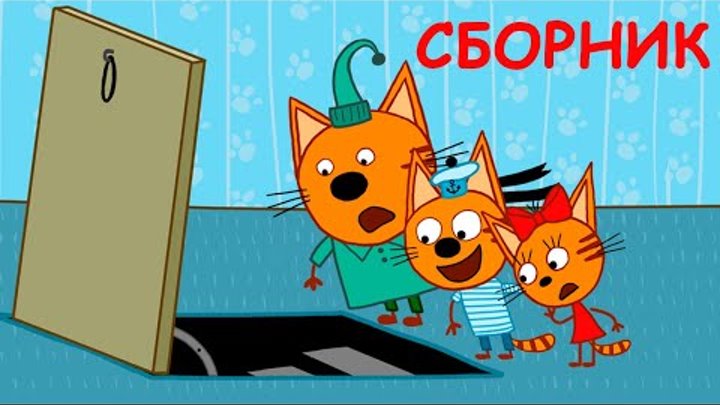 45:14
45:14
2020-04-22 20:10
 2:00:00
2024-12-19 00:00
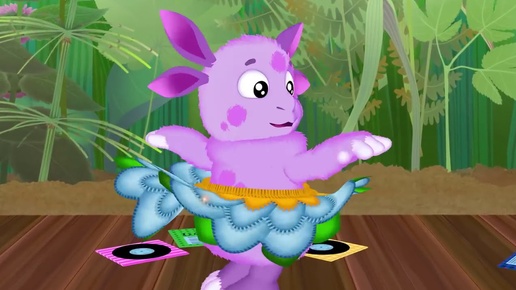 46:30
46:30
2024-08-05 22:22
![Домовенок Кузя [HD] 2025](https://avatars.dzeninfra.ru/get-zen_doc/271828/pub_67c41a33e447d23fbeac22cc_67c41a814f1bf2213084915d/smart_crop_516x290) 1:29:43
1:29:43
2025-03-02 11:56
 2:52:30
2025-01-13 14:00
2026-02-02 14:57
 1:48:48
2024-12-16 19:01
 1:49:29
2023-04-27 15:40
 1:19:08
2026-01-01 13:59
 2:17:36
2025-07-24 20:55
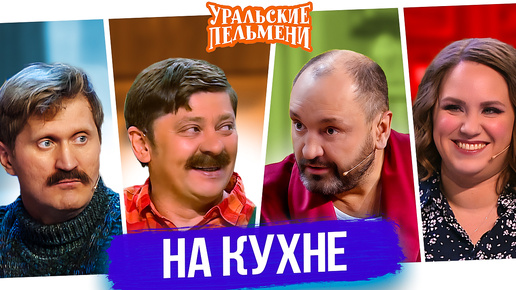 1:30:27
2025-04-04 18:26
 3:28:06
2026-02-24 11:12
 57:36
57:36
2024-11-13 13:06
 1:44:11
2025-12-25 22:29
0/0