

 2:18
2:18
2022-03-31 17:09
 1:54:55
1:54:55
2026-05-03 21:00
 10:54:47
10:54:47
2026-04-30 00:03
 3:12:39
3:12:39
2026-04-02 00:05
 11:40:36
11:40:36
2026-04-30 00:01
 2:36:33
2:36:33
2026-04-24 17:06
 11:26:05
11:26:05
2026-04-30 00:01
 2:21:43
2:21:43
2025-12-28 18:16
 2:48:30
2:48:30
2023-12-23 12:24
 2:23:16
2:23:16
2023-12-23 12:18
 2:40:57
2:40:57
2025-12-17 16:07
 2:16:05
2:16:05
2025-01-18 21:00
 2:29:19
2:29:19
2025-10-01 19:29
 3:08:44
3:08:44
2025-06-28 22:00
 3:02:32
3:02:32
2023-12-23 12:08
 3:01:31
3:01:31
2025-10-02 19:15
 2:33:30
2:33:30
2023-09-10 20:33
 2:49:04
![Гайратжон Янгибоев & Бонухон - Шахарда (Премьера клипа 2026)]() 3:15
3:15
![Пропаганда - Рейв (Премьера клипа 2026)]() 2:49
2:49
![ALEX ANDREEV - Расцвела (Премьера клипа 2026)]() 3:20
3:20
![Альберт Эркенов - Непокорная (Премьера клипа 2026)]() 4:04
4:04
![Enrasta - Адьёс (Премьера клипа 2026)]() 3:45
3:45
![Sabi, MIA BOYKA - Базовый минимум (Премьера клипа 2026)]() 2:26
2:26
![BEARWOLF - Феникс (Премьера клипа 2026)]() 3:32
3:32
![Рейсан Магомедкеримов - Холостой (Премьера клипа 2026)]() 2:22
2:22
![Ислам Мальсуйгенов, Зульфия Чотчаева - Заиграла любовь (Премьера клипа 2026)]() 2:15
2:15
![Рустам Батербиев - Цунами (Премьера клипа 2026)]() 2:32
2:32
![Азамат Исенгазин - Ты там, где я (Премьера клипа 2026)]() 3:12
3:12
![StaFFорд63 - Наступит день (Премьера клипа 2026)]() 3:04
3:04
![Murat Gamidov - Лилия (Премьера клипа 2026)]() 2:34
2:34
![Сергей Завьялов - А ты не мучай (Премьера клипа 2026)]() 2:45
2:45
![Винтаж - Малахит (Премьера клипа 2026)]() 3:44
3:44
![AY YOLA - Aihylyu (Премьера клипа 2026)]() 3:49
3:49
![Cvetocek7 - Неспокойно без тебя (Премьера клипа 2026)]() 2:34
2:34
![Игорь Кибирев - Уйду в туман (Премьера клипа 2026)]() 3:50
3:50
![ARTIX, Анна Калайчева - Под гипнозом (Премьера клипа 2026)]() 2:29
2:29
![Соня Белькевич, КРЕСТОВ - Станцуем (Премьера клипа 2026)]() 3:25
3:25
![Нескромные | Splitsville (2025)]() 1:44:43
1:44:43
![Хамнет: История, вдохновившая «Гамлета» | Hamnet (2025)]() 2:05:47
2:05:47
![Эта штука работает? | Is This Thing On? (2026)]() 2:00:44
2:00:44
![Джо едет в колледж | Joe's College Road Trip (2026)]() 1:51:29
1:51:29
![Последствия | Outcome (2026)]() 1:23:53
1:23:53
![Они придут за тобой | They Will Kill You (2026)]() 1:35:38
1:35:38
![Крик 7 | Scream 7 (2026)]() 1:53:59
1:53:59
![Частная жизнь | Vie privée (2025)]() 1:47:21
1:47:21
![28 лет спустя: Часть II. Храм костей | 28 Years Later: The Bone Temple (2026)]() 1:49:24
1:49:24
![Охотник и охотница | Hunting Grounds (2025)]() 1:29:24
1:29:24
![Удачи, веселья, не сдохни | Good Luck, Have Fun, Don't Die (2025)]() 2:14:31
2:14:31
![Обитель зла: Последняя глава | Resident Evil: The Final Chapter (2016)]() 1:46:38
1:46:38
![Проект «Конец света» | Project Hail Mary (2026)]() 2:36:35
2:36:35
![Игра со смертью | Play Dead (2025)]() 1:12:23
1:12:23
![Обитель зла: Возмездие | Resident Evil: Retribution (2012)]() 1:35:41
1:35:41
![Майк и Ник и Ник и Элис | Mike & Nick & Nick & Alice (2026)]() 1:47:10
1:47:10
![Вершина | Apex (2026)]() 1:35:30
1:35:30
![Я иду искать 2 | Ready or Not 2: Here I Come (2026)]() 1:47:56
1:47:56
![Примат | Primate (2025)]() 1:32:12
1:32:12
![Спрингстин. Избавь меня от небытия | Springsteen: Deliver Me from Nowhere (2025)]() 1:59:36
1:59:36
![Тёплая анимация | Новая авторская анимация Союзмультфильма]() 5:22
5:22
![Корги по имени Моко. Домашние животные]() 1:13
1:13
![Лудлвилль]() 7:05
7:05
![Монсики]() 6:30
6:30
![Майло]() 0:25
0:25
![Мартышкины]() 7:10
7:10
![Мотофайтеры]() 13:10
13:10
![Сборники «Приключения Пети и Волка»]() 1:28:31
1:28:31
![Школьный автобус Гордон]() 12:34
12:34
![МиниФорс Сезон 1]() 13:12
13:12
![Команда Дино Сезон 2]() 12:31
12:31
![Новогодние мультики – Союзмультфильм]() 7:04
7:04
![Ну, погоди! Каникулы]() 7:09
7:09
![Неодети]() 11:27
11:27
![Рэй и пожарный патруль Сезон 1]() 13:27
13:27
![Енотки]() 7:08
7:08
![Сборники «Простоквашино»]() 1:07:28
1:07:28
![Стражи Вселенной]() 1:04
1:04
![Отряд А. Игрушки-спасатели]() 13:06
13:06
![Последний книжный магазин]() 11:20
11:20
![Гордость и предубеждение | Pride & Prejudice (2005)]() 2:08:21
2:08:21
![ANNA ASTI - ЦАРИЦА ( Премьера клипа 2023 )]() 4:01
4:01
![Спартак: Дом Ашура. 1 сезон, 1 серия]() 58:27
58:27
![Женщина лёгкого похудения - Уральские Пельмени]() 1:12:19
1:12:19
![КЛИПЫ 80-90 х - ЗОЛОТЫЕ ХИТЫ - ЛЮБИМЫЕ ПЕСНИ]() 2:07:05
2:07:05
![MAUR - Полетела (Премьера клипа 2025)]() 2:53
2:53
![Зверополис | Zootopia (2016)]() 1:48:48
1:48:48
![_*ДискотекА 80-90х ВиДео АлЬбом Лучшие.*_]() 2:40:60
2:40:60
![Сборник Новогодняя Десятка - Уральские Пельмени]() 1:19:08
1:19:08
![Форсаж 9 | F9 (2021)]() 2:22:56
2:22:56
![Jazzdauren - Дарите женщинам цветы]() 3:09
3:09
![Клипы 90-х. Русский сборник хитов]() 1:29:27
1:29:27
![КЛИПЫ 90х ⭐Русский Сборник видеоклипов]() 2:54:39
2:54:39
![Три Кота | Сборник домашних приключений | Мультфильмы для детей]() 45:14
45:14
![Франкенштейн | Frankenstein (2025)]() 2:32:29
2:32:29
![Jakone и Kiliana - Асфальт (Mood Video)]() 2:50
2:50
![КАМИН 4К 🔥 FIREPLACE 4K | Звуки камина и Треск огня]() 2:00:00
2:00:00
![Форсаж 6 | Furious 6 (2013)]() 2:11:07
2:11:07
![Лучшие в Аду (2022)]() 1:49:08
1:49:08
![Рыцарь семи королевств. Все серии]() 3:28:06
3:28:06
2:49:04

Скачать Видео с Рутуба по ссылке
| 256x144 | ||
| 640x360 | ||
| 1280x720 | ||
| 1920x1080 |
 3:15
3:15
2026-04-20 17:02
 2:49
2:49
2026-04-17 12:23
 3:20
3:20
2026-04-16 11:51
 4:04
4:04
2026-04-10 10:01
 3:45
3:45
2026-04-29 14:24
 2:26
2:26
2026-04-23 13:18
 3:32
3:32
2026-04-15 12:36
 2:22
2:22
2026-04-11 10:26
 2:15
2:15
2026-04-17 12:38
 2:32
2:32
2026-04-29 11:10
 3:12
3:12
2026-04-29 11:28
 3:04
3:04
2026-04-23 11:16
 2:34
2:34
2026-04-29 11:20
 2:45
2:45
2026-04-23 11:37
 3:44
3:44
2026-04-28 12:53
 3:49
3:49
2026-04-20 16:46
 2:34
2:34
2026-04-23 11:07
 3:50
3:50
2026-04-21 10:26
 2:29
2:29
2026-04-28 10:53
 3:25
3:25
2026-04-30 11:44
0/0
 1:44:43
2026-04-09 22:40
 2:05:47
2026-02-06 18:40
 2:00:44
2026-05-04 16:12
 1:51:29
2026-02-26 14:41
 1:23:53
2026-04-17 14:43
 1:35:38
2026-05-04 16:23
 1:53:59
2026-04-22 11:21
 1:47:21
2026-04-09 22:40
 1:49:24
2026-02-19 14:08
 1:29:24
2026-02-06 18:40
 2:14:31
2026-03-12 23:32
 1:46:38
2026-02-25 19:41
 2:36:35
2026-04-11 16:06
 1:12:23
2026-03-06 18:16
 1:35:41
2026-02-25 19:41
 1:47:10
2026-04-03 12:10
 1:35:30
2026-04-30 16:00
 1:47:56
2026-04-12 17:20
 1:32:12
2026-02-17 21:38
 1:59:36
2026-02-13 14:02
0/0
 5:22
5:22
2026-05-02 16:12
 1:13
1:13
2024-11-29 14:40
 7:05
7:05
2025-12-30 20:49
 6:30
6:30
2022-03-29 19:16
 0:25
0:25
2026-04-10 13:19
 7:10
7:10
2025-12-30 18:33
 13:10
13:10
2024-11-27 14:57
 1:28:31
2026-03-05 13:25
 12:34
12:34
2024-12-02 14:42
2021-09-23 00:15
2021-09-22 22:40
 7:04
7:04
2023-07-25 00:09
 7:09
7:09
2026-04-11 10:00
 11:27
11:27
2025-10-10 18:25
2021-09-22 23:51
 7:08
7:08
2025-12-30 21:34
 1:07:28
2026-04-02 13:30
 1:04
1:04
2026-04-14 12:27
 13:06
13:06
2024-11-28 16:30
 11:20
11:20
2025-09-12 10:05
0/0
 2:08:21
2023-05-03 20:56
 4:01
4:01
2023-10-12 11:54
 58:27
58:27
2025-12-08 12:06
 1:12:19
2025-04-18 22:01
2023-05-31 14:59
 2:53
2:53
2025-04-24 09:53
 1:48:48
2024-12-16 19:01
 2:40:60
2024-03-18 17:25
 1:19:08
2026-01-01 13:59
 2:22:56
2023-04-25 23:06
 3:09
3:09
2024-05-30 14:13
 1:29:27
2024-01-12 11:40
 2:54:39
2022-03-11 11:17
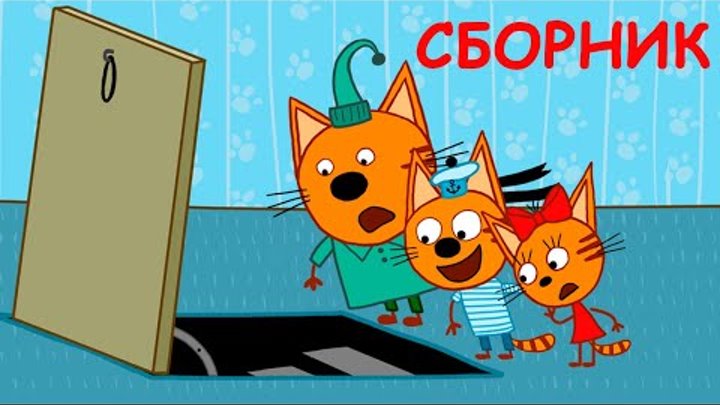 45:14
45:14
2020-04-22 20:10
 2:32:29
2025-11-17 11:22
 2:50
2:50
2024-07-04 15:48
 2:00:00
2024-12-19 00:00
 2:11:07
2023-04-25 22:52
 1:49:08
2022-10-20 11:01
 3:28:06
2026-02-24 11:12
0/0