

 1:57:08
2024-02-15 20:46
 2:46:48
2:46:48
2026-06-12 19:30
 1:21:16
1:21:16
2026-06-18 16:00
 1:13:21
1:13:21
2026-06-19 05:26
 1:41:07
1:41:07
2025-02-01 09:30
 1:07:59
1:07:59
2026-06-18 17:11
 1:32:16
1:32:16
2024-01-15 17:08
![[Тим Тин] - Я Встречаюсь с Суперзвездой! Мы Создали Новую КейПоп-Группу](https://pic.rtbcdn.ru/video/2026-06-18/a3/a9/a3a97847621fc19a8e4a483e2d828adf.jpg?width=300) 1:37:44
1:37:44
1:37:44
2026-06-19 08:26
 2:30:39
2:30:39
2023-12-23 12:22
 2:44:12
2:44:12
2026-06-16 21:00
 1:24:02
1:24:02
2026-06-17 01:41
 1:39:38
1:39:38
2026-04-04 09:00
 2:19:11
2:19:11
2025-06-17 10:00
 3:23:50
3:23:50
2025-12-16 04:43
 1:32:23
1:32:23
2026-02-19 16:57
 1:35:15
1:35:15
2025-06-04 18:01
 1:41:15
1:41:15
2024-02-20 16:24
 1:52:53
![Arujan - Koz tiydime (Премьера клипа 2026)]() 3:24
3:24
![Гоша Куценко, Юлия Пак - Твоя я (Премьера клипа 2026)]() 4:01
4:01
![Юлия Имранова - Держи меня за руку (Премьера клипа 2026)]() 3:30
3:30
![Джатдай - Болит моя душа (Премьера клипа 2026)]() 2:14
2:14
![Murat Gamidov - По ночам (Премьера клипа 2026)]() 2:53
2:53
![Cvetocek7 - Близкий человек (Премьера клипа 2026)]() 2:46
2:46
![Ислам Итляшев - Ай да она (Премьера клипа 2026)]() 3:02
3:02
![Альберт Эркенов - По привычке (Премьера клипа 2026)]() 2:54
2:54
![Tural Everest - Отравляешь ядом (Премьера клипа 2026)]() 2:26
2:26
![Рустам Батербиев - Обернись (Премьера клипа 2026)]() 2:47
2:47
![Xhensila – Gjuma (Official Video 2026)]() 2:18
2:18
![Ислам Мальсуйгенов и Зульфия Чотчаева - Путеводная (Премьера клипа 2026)]() 3:15
3:15
![Соня Белькевич - Давай, танцуй (Премьера клипа 2026)]() 3:40
3:40
![Рейсан Магомедкеримов - Роза алая (Премьера клипа 2026)]() 3:52
3:52
![Сергей Одинцов - Моя недотрога (Премьера клипа 2026)]() 3:40
3:40
![Бахтавар - Бизнес Леди (Премьера клипа 2026)]() 2:28
2:28
![KIDA - MENIME (Official Video 2026)]() 2:44
2:44
![Ислам Итляшев - Мужское сердце (Премьера клипа 2026)]() 3:24
3:24
![Фати Царикаева - Доброе утро (Премьера клипа 2026)]() 2:42
2:42
![ХАННА - Танцуй (Премьера 2026)]() 3:17
3:17
![Супер Марио: Галактическое кино | The Super Mario Galaxy Movie (2026)]() 1:38:05
1:38:05
![Свадьба лучшего друга | My Best Friend's Wedding (1997)]() 1:44:58
1:44:58
![Хокум | Hokum (2026)]() 1:47:20
1:47:20
![Смертельно прекрасна | Pretty Lethal (2026)]() 1:30:46
1:30:46
![Супер Марио: Галактическое кино | The Super Mario Galaxy Movie (2026)]() 1:38:18
1:38:18
![Эта штука работает? | Is This Thing On? (2026)]() 2:00:44
2:00:44
![Напоминание о нём | Reminders of Him (2026)]() 1:54:16
1:54:16
![Чумовая пятница 2 | Freakier Friday (2025)]() 1:50:38
1:50:38
![Мумия | The Mummy (2026)]() 2:15:22
2:15:22
![Нормал | Normal (2025)]() 1:31:23
1:31:23
![Последствия | Outcome (2026)]() 1:23:53
1:23:53
![В чужой шкуре | Swapped (2026)]() 1:41:49
1:41:49
![Вершина | Apex (2026)]() 1:35:30
1:35:30
![Мать Мария | Mother Mary (2026)]() 1:51:42
1:51:42
![Майк и Ник и Ник и Элис | Mike & Nick & Nick & Alice (2026)]() 1:47:10
1:47:10
![Полный такос | Operation Taco Gary's (2026)]() 1:26:14
1:26:14
![Пицца фильм | Pizza Movie (2026)]() 1:37:12
1:37:12
![Завещание Анны Ли | The Testament of Ann Lee (2025)]() 2:16:48
2:16:48
![Пропеллер: Ночной рейс в один конец | Propeller: One-Way Night Coach (2026)]() 1:00:24
1:00:24
![Микки 17 | Mickey 17 (2025)]() 2:16:60
2:16:60
![Корги по имени Моко. Домашние животные]() 1:13
1:13
![Мия и Коди]() 0:12
0:12
![Паровозик Титипо]() 13:42
13:42
![МиниФорс]() 0:00
0:00
![Тайны Медовой долины]() 7:01
7:01
![Космический рейнджер Роджер Сезон 1]() 11:32
11:32
![Сборники «Простоквашино»]() 1:07:28
1:07:28
![Приключения Пети и Волка]() 11:00
11:00
![Чуч-Мяуч]() 7:04
7:04
![Новое ПРОСТОКВАШИНО]() 6:30
6:30
![Сборники «Оранжевая корова»]() 1:05:17
1:05:17
![Отряд А. Игрушки-спасатели]() 13:06
13:06
![Киддеты]() 0:41
0:41
![Пингвиненок Пороро]() 7:42
7:42
![Мартышкины]() 7:10
7:10
![Пиратская школа]() 11:06
11:06
![Забавные медвежата]() 13:00
13:00
![Неодети]() 11:27
11:27
![Хвостатые песенки]() 7:00
7:00
![Последний книжный магазин]() 11:20
11:20
![_*ДискотекА 80-90х ВиДео АлЬбом Лучшие.*_]() 2:40:60
2:40:60
![Зверополис 2 | Zootopia 2 (2025)]() 1:47:36
1:47:36
![Сваты 1 сезон (сериал, 2008)]() 2:17:36
2:17:36
![Инна Вальтер - Дымом лечилась (Исповедь хулиганки)]() 7:04
7:04
![Мир в огне (все серии) 4K]() 12:26:36
12:26:36
![Аватар: Путь воды (2022)]() 3:12:39
3:12:39
![Винни-Пух. 1969 год.]() 41:23
41:23
![🚀 ТОП Музыка 2026: Хиты на Все Времена! 🎵 Твои Любимые Исполнители 💎]() 2:48:18
2:48:18
![Ми–Ми–Мишки 💫 Звездная история 🙃 Все серии ✨ Мультики для детей]() 2:10:31
2:10:31
![Дьявол носит Prada 2 | The Devil Wears Prada 2 (2026)]() 1:51:51
1:51:51
![Ми–Ми–Мишки 💫 Звездная история 🙃 Все серии ✨ Мультики для детей]() 2:10:31
2:10:31
![Спартак: Дом Ашура. 1 сезон, 1 серия]() 58:27
58:27
![Женщина лёгкого похудения - Уральские Пельмени]() 1:12:19
1:12:19
![Клипы 90-х. Русский сборник хитов]() 1:29:27
1:29:27
![мультфильм «Ну, погоди!» (1-16 серии)]() 2:31:36
2:31:36
![Лунтик | Танцы 💃💃💃 Сборник мультиков для детей]() 46:30
46:30
![Три Кота 🐱 Сборник серий подряд | Смотреть онлайн развивающие мультики и игры для детей и малышей]() 3:16:51
3:16:51
![Смешарики (большой сборник)]() 3:25:27
3:25:27
![Штрафбат(1-11 серии) HD 2004]() 8:05:56
8:05:56
![Хищник: Планета смерти | Predator: Badlands (2025)]() 1:47:25
1:47:25
1:52:53

Скачать Видео с Рутуба по ссылке
| 256x144 | ||
| 426x240 | ||
| 640x360 | ||
| 854x480 | ||
| 1280x720 | ||
| 1920x1080 |
 3:24
3:24
2026-05-16 13:20
 4:01
4:01
2026-05-21 11:24
 3:30
3:30
2026-05-26 11:32
 2:14
2:14
2026-05-10 15:00
 2:53
2:53
2026-05-21 14:27
 2:46
2:46
2026-05-24 15:25
 3:02
3:02
2026-06-18 15:43
 2:54
2:54
2026-04-29 11:48
 2:26
2:26
2026-05-28 13:22
 2:47
2:47
2026-05-26 11:05
 2:18
2:18
2026-05-10 12:39
 3:15
3:15
2026-05-30 11:43
 3:40
3:40
2026-05-22 10:17
 3:52
3:52
2026-05-09 18:11
 3:40
3:40
2026-05-15 10:04
 2:28
2:28
2026-06-11 11:23
 2:44
2:44
2026-05-10 12:47
 3:24
3:24
2026-05-15 09:58
 2:42
2:42
2026-06-14 12:22
2026-06-14 11:27
0/0
 1:38:05
2026-04-12 21:37
 1:44:58
2026-06-01 17:17
 1:47:20
2026-06-04 13:05
 1:30:46
2026-03-28 23:09
 1:38:18
2026-05-12 16:55
 2:00:44
2026-05-04 16:12
 1:54:16
2026-05-28 20:15
 1:50:38
2026-05-20 08:38
 2:15:22
2026-05-21 11:56
 1:31:23
2026-05-27 11:57
 1:23:53
2026-04-17 14:43
 1:41:49
2026-05-06 10:44
 1:35:30
2026-04-30 16:00
 1:51:42
2026-05-26 13:06
 1:47:10
2026-04-03 12:10
 1:26:14
2026-04-07 11:13
 1:37:12
2026-04-06 12:20
 2:16:48
2026-03-12 23:31
 1:00:24
2026-06-03 11:48
 2:16:60
2026-05-07 15:07
0/0
 1:13
1:13
2024-11-29 14:40
 0:12
0:12
2026-04-10 14:28
 13:42
13:42
2024-11-28 14:12
 0:00
0:00
2026-06-19 14:26
 7:01
7:01
2022-03-30 17:25
2021-09-22 21:49
 1:07:28
2026-04-02 13:30
 11:00
11:00
2022-04-01 17:59
 7:04
7:04
2022-03-29 15:20
 6:30
6:30
2018-04-03 10:35
 1:05:17
2025-07-15 11:22
 13:06
13:06
2024-11-28 16:30
 0:41
0:41
2026-05-07 15:39
 7:42
7:42
2024-12-17 12:21
 7:10
7:10
2025-12-30 18:33
 11:06
11:06
2022-04-01 15:56
 13:00
13:00
2024-12-02 13:15
 11:27
11:27
2025-10-10 18:25
 7:00
7:00
2025-06-01 11:15
 11:20
11:20
2025-09-12 10:05
0/0
 2:40:60
2024-03-18 17:25
 1:47:36
2025-12-25 17:49
 2:17:36
2025-10-08 08:17
 7:04
7:04
2018-07-11 11:26
 12:26:36
2025-11-14 19:42
 3:12:39
2025-06-17 19:00
 41:23
41:23
2023-11-19 12:01
 2:48:18
2026-04-24 09:34
 2:10:31
2024-01-17 17:34
 1:51:51
2026-05-06 10:53
2:10:31
2024-01-17 17:34
 58:27
58:27
2025-12-08 12:06
 1:12:19
2025-04-18 22:01
 1:29:27
2024-01-12 11:40
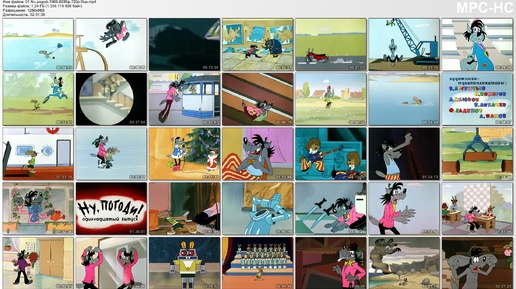 2:31:36
2024-12-06 21:59
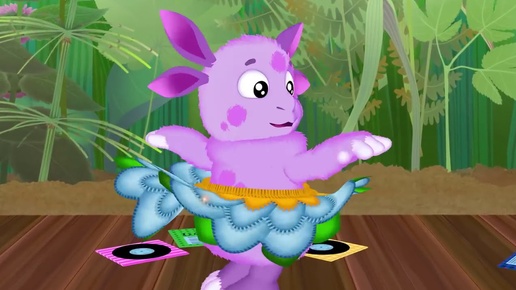 46:30
46:30
2024-08-05 22:22
 3:16:51
2025-10-03 19:48
 3:25:27
2025-01-24 05:04
 8:05:56
2017-07-08 19:33
 1:47:25
2025-11-27 03:58
0/0