

 1:35:51
2026-02-05 16:00
 11:16:29
11:16:29
2025-05-23 08:04
 10:25:31
10:25:31
2025-05-02 07:58
 2:32:19
2:32:19
2023-09-10 18:25
 2:59:53
2:59:53
2026-02-06 18:35
 2:19:60
2:19:60
2024-01-30 07:23
 4:02:06
4:02:06
2025-01-04 02:00
 2:21:44
2:21:44
2023-09-10 19:20
 2:40:56
2:40:56
2023-09-10 18:55
 11:56:60
11:56:60
2025-08-29 07:40
 9:16:31
9:16:31
2025-11-30 19:42
 2:48:30
2:48:30
2023-12-23 12:24
 3:03:02
3:03:02
2023-12-23 12:08
 2:27:39
2:27:39
2025-12-28 21:17
 2:11:44
2:11:44
2025-09-21 23:35
 2:01:48
2:01:48
2023-12-14 11:09
 3:12:39
3:12:39
2023-09-15 21:20
 2:33:30
![Самир Санаев - Дилрабо (Премьера клипа 2026)]() 4:17
4:17
![Ярослав Сумишевский, Ксения Сумишевская – Отец и дочь (Премьера клипа 2026)]() 3:56
3:56
![Женя Белоусова - Кричать (Премьера клипа 2026)]() 3:33
3:33
![GUNEL - Судьба злодейка (Премьера клипа 2026)]() 3:24
3:24
![Бахтавар - Кукла Барби (Премьера клипа 2026)]() 2:44
2:44
![Руслан Добрый - Загадка (Премьера клипа 2026)]() 2:16
2:16
![Зульфия Чотчаева - Снежинки (Премьера клипа 2026)]() 3:08
3:08
![Ислам Мальсуйгенов - Ледяное сердце (Премьера клипа 2026)]() 2:30
2:30
![Жалолиддин Ахмадалиев - Хеч одам булмайди бази бировлар (Премьера клипа 2026)]() 3:22
3:22
![МАРАТ & АРНИ - Надо ли (Премьера клипа 2026)]() 2:36
2:36
![DJ Serzh - Кувырком (Премьера клипа 2026)]() 4:10
4:10
![Eliza Simone - Erevanov (Official Video 2026)]() 2:19
2:19
![NAIMAN - Тебя украду (Премьера клипа 2026)]() 2:28
2:28
![TOMA - Заберу (Премьера клипа 2026)]() 2:55
2:55
![Зироатхон - Бевафо (Премьера клипа 2026)]() 3:15
3:15
![Zhamil Turan - Только для тебя (Премьера клипа 2026)]() 3:22
3:22
![MILEN - Губы алые (Премьера 2026)]() 2:57
2:57
![Рейсан Магомедкеримов - Окутала (Премьера клипа 2026)]() 2:30
2:30
![Шамсиддин Юсупов & Азиза Расулова - Ёрим (Премьера клипа 2026)]() 3:05
3:05
![Игорь Кибирев - Лебедь белая (Премьера клипа 2026)]() 3:17
3:17
![Гарри Поттер и узник Азкабана | Harry Potter and the Prisoner of Azkaban (2004)]() 2:21:46
2:21:46
![Оскар шоу | Oscar Shaw (2025)]() 1:29:22
1:29:22
![Отпуск на двоих | People We Meet on Vacation (2026)]() 1:57:55
1:57:55
![Кровь на границе | Frontier Crucible (2025)]() 2:04:36
2:04:36
![Пять ночей с Фредди 2 | Five Nights at Freddy's 2 (2025)]() 1:44:11
1:44:11
![Гарри Поттер и Орден Феникса | Harry Potter and the Order of the Phoenix (2007)]() 2:18:19
2:18:19
![Игры Биста. 2 сезон, 4 серия | Beast Games 2 season]() 1:01:10
1:01:10
![Астронавт | The Astronaut (2025)]() 1:30:31
1:30:31
![Пункт назначения: Узы крови | Final Destination: Bloodlines (2025)]() 1:49:52
1:49:52
![Игры Биста. 2 сезон, 5 серия | Beast Games 2 season]() 49:20
49:20
![Лакомый кусок | The Rip (2025)]() 1:52:50
1:52:50
![Давид | David (2025)]() 1:49:18
1:49:18
![Гарри Поттер и Кубок огня | Harry Potter and the Goblet of Fire (2005)]() 2:37:09
2:37:09
![Анаконда | Anaconda (2025)]() 1:38:55
1:38:55
![Опасный дуэт | The Wrecking Crew (2026)]() 2:04:21
2:04:21
![Зверополис 2 | Zootopia 2 (2025)]() 1:47:36
1:47:36
![Сират | Sirât (2025)]() 1:54:52
1:54:52
![Игры Биста. 2 сезон, 6 серия | Beast Games 2 season]() 1:01:28
1:01:28
![Игры Биста. 2 сезон, 3 серия | Beast Games 2 season]() 57:01
57:01
![Гарри Поттер и философский камень | Harry Potter and the Sorcerer's Stone (2001)]() 2:32:26
2:32:26
![Пингвиненок Пороро]() 7:42
7:42
![Мотофайтеры]() 13:10
13:10
![Приключения Тайо]() 12:50
12:50
![Сборники «Умка»]() 1:11:53
1:11:53
![Богатырята]() 11:00
11:00
![Команда Дино. Исследователи Сезон 2]() 13:26
13:26
![Сборники «Оранжевая корова»]() 1:05:01
1:05:01
![Мультфильмы военных лет | Специальный проект к 80-летию Победы]() 7:20
7:20
![Сборники «Зебра в клеточку»]() 45:30
45:30
![МегаМен: Полный заряд Сезон 1]() 10:42
10:42
![Чемпионы]() 7:15
7:15
![Чуч-Мяуч]() 7:04
7:04
![Пип и Альба Сезон 1]() 11:02
11:02
![Хвостатые песенки]() 7:00
7:00
![Поймай Тинипин! Королевство эмоций]() 12:24
12:24
![Карли – искательница приключений. Древнее королевство]() 13:00
13:00
![Лудлвилль]() 7:05
7:05
![Пип и Альба. Приключения в Соленой Бухте! Сезон 1]() 11:02
11:02
![Последний книжный магазин]() 11:20
11:20
![Команда Дино Сезон 2]() 12:31
12:31
![Давид | David (2025)]() 1:49:18
1:49:18
![Три Кота | Сборник замечательных серий | Мультфильмы для детей😃]() 1:03:03
1:03:03
![Штрафбат(1-11 серии) HD 2004]() 8:05:56
8:05:56
![Форсаж 9 | F9 (2021)]() 2:22:56
2:22:56
![Сборник Топ 20 Номеров за 2024 год - Уральские Пельмени]() 2:52:30
2:52:30
![ХИТЫ 2025 ТАНЦЕВАЛЬНАЯ МУЗЫКА СБОРНИК]() 1:41:18
1:41:18
![Бандитский Петербург. Все серии подряд. 60fps]() 66:54:01
66:54:01
![Антиреспект - Тишины хочу]() 4:33
4:33
![Свои. Баллада о войне [2025, драма, военный]]() 1:29:27
1:29:27
![Аватар 3 Пламя и пепел / Avatar 3 Fire and Ash / 2025 / 4K / БЕЗ РЕКЛАМЫ!]() 3:10:17
3:10:17
![Премьера: Предательство - фильм Андрея Медведева от 01.02.2026]() 59:17
59:17
![Франкенштейн | Frankenstein (2025)]() 2:32:29
2:32:29
![Зверополис | Zootopia (2016)]() 1:48:48
1:48:48
![Инна Вальтер - Дымом лечилась (Исповедь хулиганки)]() 7:04
7:04
![ANNA ASTI - ЦАРИЦА ( Премьера клипа 2023 )]() 4:01
4:01
![ТОП ЛУЧШИХ КЛИПОВ ШАНСОНА - Слушать шансон лучшее.]() 3:48:45
3:48:45
![Дьявол носит Prada | The Devil Wears Prada (2006)]() 1:49:29
1:49:29
![Зверополис 2 | Zootopia 2 (2025)]() 1:47:36
1:47:36
![Хищник: Планета смерти | Predator: Badlands (2025)]() 1:47:25
1:47:25
![Сборник На Кухне | Уральские Пельмени]() 1:30:27
1:30:27
2:33:30

Скачать Видео с Рутуба / RuTube
| 256x144 | ||
| 640x360 |
 4:17
4:17
2026-01-28 12:17
 3:56
3:56
2026-01-30 12:45
 3:33
3:33
2026-02-08 12:36
 3:24
3:24
2026-02-03 14:30
 2:44
2:44
2026-02-07 12:33
 2:16
2:16
2026-02-08 13:12
 3:08
3:08
2026-02-08 13:19
 2:30
2:30
2026-01-24 13:36
 3:22
3:22
2026-02-07 13:11
 2:36
2:36
2026-02-04 10:45
 4:10
4:10
2026-02-02 09:16
 2:19
2:19
2026-02-07 13:02
 2:28
2:28
2026-01-28 12:37
 2:55
2:55
2026-02-02 10:04
 3:15
3:15
2026-01-28 12:20
 3:22
3:22
2026-02-08 12:46
 2:57
2:57
2026-02-03 14:26
 2:30
2:30
2026-02-03 13:40
 3:05
3:05
2026-02-07 13:13
 3:17
3:17
2026-02-03 14:11
0/0
 2:21:46
2025-12-25 15:40
 1:29:22
2026-01-26 14:34
 1:57:55
2026-01-14 15:48
 2:04:36
2026-01-26 14:34
 1:44:11
2025-12-25 22:29
 2:18:19
2025-12-25 15:40
 1:01:10
2026-01-15 03:46
 1:30:31
2026-01-14 15:48
 1:49:52
2026-01-23 18:44
 49:20
49:20
2026-01-23 13:36
 1:52:50
2026-02-04 10:11
 1:49:18
2026-01-29 11:25
 2:37:09
2025-12-25 15:40
 1:38:55
2026-01-28 12:07
 2:04:21
2026-02-02 00:43
 1:47:36
2025-12-25 17:49
 1:54:52
2026-01-26 14:35
 1:01:28
2026-02-04 10:24
 57:01
57:01
2026-01-07 23:55
 2:32:26
2025-12-25 15:41
0/0
 7:42
7:42
2024-12-17 12:21
 13:10
13:10
2024-11-27 14:57
 12:50
12:50
2024-12-17 13:25
 1:11:53
2026-01-29 11:37
2026-01-12 13:08
2021-09-22 22:54
 1:05:01
2025-12-12 12:24
 7:20
7:20
2025-05-03 12:34
 45:30
45:30
2025-12-11 18:53
2021-09-22 21:43
 7:15
7:15
2025-12-10 10:00
 7:04
7:04
2022-03-29 15:20
2021-09-22 23:37
 7:00
7:00
2025-06-01 11:15
 12:24
12:24
2024-11-27 13:24
 13:00
13:00
2024-11-28 16:19
 7:05
7:05
2025-12-30 20:49
2021-09-22 23:36
 11:20
11:20
2025-09-12 10:05
2021-09-22 22:40
0/0
Скачать популярное видео
Популярное видео
 1:49:18
2026-01-29 11:25
 1:03:03
2026-02-02 23:42
2017-07-08 19:33
 2:22:56
2023-04-25 23:06
 2:52:30
2025-01-13 14:00
2024-06-25 00:21
2023-05-15 17:30
 4:33
4:33
2019-12-02 21:15
2025-04-11 14:51
 3:10:17
2026-02-05 15:37
2026-02-01 14:02
 2:32:29
2025-11-17 11:22
 1:48:48
2024-12-16 19:01
 7:04
7:04
2018-07-11 11:26
 4:01
4:01
2023-10-12 11:54
2026-02-02 14:57
 1:49:29
2023-04-27 15:40
 1:47:36
2025-12-25 17:49
 1:47:25
2025-11-27 03:58
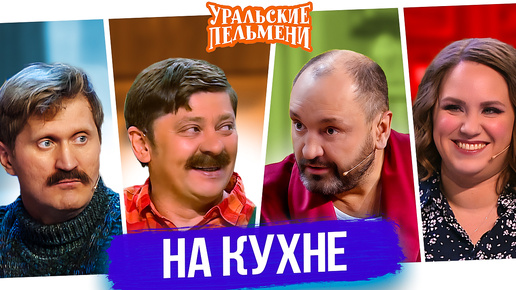 1:30:27
2025-04-04 18:26
0/0