

 3:51
3:51
2025-05-13 01:42
 3:37
3:37
3:37
2023-11-12 01:29
 1:54:20
1:54:20
2026-03-08 21:00
 10:11:37
10:11:37
2025-04-07 07:03
 1:22:04
1:22:04
2024-10-20 13:00
 11:03:06
11:03:06
2025-10-20 06:19
 2:07:59
2:07:59
2026-02-18 21:10
 2:31:42
2:31:42
2024-12-27 18:26
 55:45
55:45
55:45
2024-12-21 10:00
 2:32:19
2:32:19
2023-09-10 18:25
 3:12:39
3:12:39
2023-12-21 11:54
 4:23:18
4:23:18
2024-02-16 17:06
 2:40:56
2:40:56
2023-09-10 18:55
 3:48:10
3:48:10
2023-09-18 01:16
 3:01:48
3:01:48
2024-02-09 03:39
 2:37:05
2:37:05
2023-09-10 20:03
 49:15
49:15
49:15
2024-09-12 22:00
 11:52:60
![С 8 Марта, милые, красивые женщины]() 5:01
5:01
![NAIMAN - Опасная (Премьера клипа 2026)]() 2:44
2:44
![Ahmed Shad - Девки (Премьера клипа 2026)]() 2:41
2:41
![Клава Кока - Сто шагов назад (Премьера клипа 2026)]() 2:41
2:41
![Zhamil Turan - Оденьте женщину в любовь (Премьера клипа 2026)]() 3:23
3:23
![Руслан Шанов - Это не любовь (Премьера клипа 2026)]() 3:22
3:22
![Zamina Elman - Ты полюбила хулигана (Премьера клипа 2026)]() 2:34
2:34
![Гузэлем - Рамазан (Премьера клипа 2026)]() 2:45
2:45
![Скандальная пара - Душе моей душа нужна (Премьера клипа 2026)]() 3:40
3:40
![Шамиль Каримов - Танцуй малая (Премьера клипа 2026)]() 3:33
3:33
![Cvetocek7 - Проблема (Премьера клипа 2026)]() 2:29
2:29
![ARTEE - Ну и пусть (Премьера клипа 2026)]() 4:12
4:12
![DOMENICA - PINOKIO (Премьера клипа 2026)]() 3:23
3:23
![BITTUEV - Ранила (Премьера клипа 2026)]() 3:25
3:25
![БАХТАВАР - RAMADAN (Премьера клипа 2026)]() 3:15
3:15
![KOBZOV - Королева Снежная (Премьера клипа 2026)]() 3:14
3:14
![DAASHA - Сердце на полку (Премьера клипа 2026)]() 2:13
2:13
![EDGAR - Букет из розовых тюльпанов (Премьера клипа 2026)]() 3:50
3:50
![Artem Smile - Цыганка нагадала (Премьера клипа 2026)]() 2:37
2:37
![Ислам Мальсуйгенов, Зульфия Чотчаева - Дарман (Премьера клипа 2026)]() 3:01
3:01
![Опасные связи | Bone Lake (2025)]() 1:30:07
1:30:07
![Носферату | Nosferatu (2024)]() 2:12:40
2:12:40
![Гoрничнaя | The Hоusеmaid (2025)]() 2:11:25
2:11:25
![28 лет спустя: Часть II. Храм костей | 28 Years Later: The Bone Temple (2026)]() 1:49:24
1:49:24
![Сущность | The Thing with Feathers (2025)]() 1:38:49
1:38:49
![Безымянная романтическая история о вторжении в дом | Untitled Home Invasion Romance (2025)]() 1:25:48
1:25:48
![Ограбление в Лос-Анджелесе | Crime 101 (2026)]() 2:19:18
2:19:18
![Орудия | Weapons (2025)]() 2:08:34
2:08:34
![Обитель зла 2: Апокалипсис | Resident Evil: Apocalypse (2004)]() 1:37:50
1:37:50
![Семья в аренду | Rental Family (2025)]() 1:49:55
1:49:55
![Без обид | No Hard Feelings (2023)]() 1:43:51
1:43:51
![Миссия невыполнима: Финальная расплата | Mission: Impossible - The Final Reckoning (2025)]() 2:52:58
2:52:58
![Военная машина | War Machine (2026)]() 1:49:24
1:49:24
![Анаконда | Anaconda (2025)]() 1:38:55
1:38:55
![Давид | David (2025)]() 1:49:18
1:49:18
![Обитель зла: Последняя глава | Resident Evil: The Final Chapter (2016)]() 1:46:38
1:46:38
![Тепло наших тел | Warm Bodies (2013)]() 1:37:49
1:37:49
![Казнить нельзя помиловать | Mercy (2026)]() 1:43:47
1:43:47
![Дикий робот | The Wild Robot (2024)]() 1:41:50
1:41:50
![Фэкхем-Холл | Fackham Hall (2025)]() 1:37:17
1:37:17
![Корги по имени Моко. Домашние животные]() 1:13
1:13
![МиниФорс Сезон 1]() 13:12
13:12
![Супер Зак]() 11:38
11:38
![Кадеты Баданаму Сезон 1]() 11:50
11:50
![Пингвиненок Пороро]() 7:42
7:42
![Мультфильмы военных лет | Специальный проект к 80-летию Победы]() 7:20
7:20
![Карли – искательница приключений. Древнее королевство]() 13:00
13:00
![Простоквашино]() 7:16
7:16
![Енотки]() 7:08
7:08
![Псэмми. Пять детей и волшебство Сезон 1]() 12:17
12:17
![Команда Дино Сезон 2]() 12:31
12:31
![Игрушечный полицейский Сезон 1]() 7:19
7:19
![Лудлвилль]() 7:05
7:05
![Новогодние мультики – Союзмультфильм]() 7:04
7:04
![Сборники «Зебра в клеточку»]() 45:30
45:30
![Шахерезада. Нерассказанные истории Сезон 1]() 23:53
23:53
![Забавные медвежата]() 13:00
13:00
![Роботы-пожарные]() 12:31
12:31
![Корги по имени Моко. Защитники планеты]() 4:33
4:33
![Истории Баданаму Сезон 1]() 10:02
10:02
![Лева Грузовичок все серии]() 43:59
43:59
![Мир в огне (все серии) 4K]() 12:26:36
12:26:36
![Сборник Синий Трактор]() 57:36
57:36
![Франкенштейн | Frankenstein (2025)]() 2:32:29
2:32:29
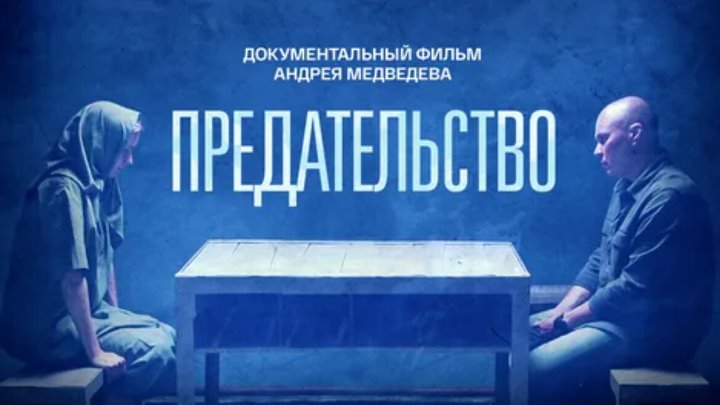
![Премьера: Предательство - фильм Андрея Медведева от 01.02.2026]() 59:17
59:17
![Максим ФАДЕЕВ feat. Григорий ЛЕПС - Орлы или вороны ft.и]() 4:38
4:38
![ХИТЫ 2025 ТАНЦЕВАЛЬНАЯ МУЗЫКА СБОРНИК]() 1:41:18
1:41:18
![Кей-поп-охотницы на демонов | KPop Demon Hunters (2025)]() 1:39:41
1:39:41
![Ми–Ми–Мишки 💫 Звездная история 🙃 Все серии ✨ Мультики для детей]() 2:10:31
2:10:31
![Сборник На Кухне | Уральские Пельмени]() 1:30:27
1:30:27
![Бандитский Петербург. Все серии подряд. 60fps]() 66:54:01
66:54:01
![Форсаж 9 | F9 (2021)]() 2:22:56
2:22:56
![Инна Вальтер - Дымом лечилась (Исповедь хулиганки)]() 7:04
7:04
![Лунтик | Танцы 💃💃💃 Сборник мультиков для детей]() 46:30
46:30
![28 лет спустя: Часть II. Храм костей | 28 Years Later: The Bone Temple (2026)]() 1:49:24
1:49:24
![СваТы 1 сезон(все серии)]() 2:17:36
2:17:36
![Цып-Цып - Мультики для детей - Все серии подряд!]() 1:45:28
1:45:28
![Давид | David (2025)]() 1:49:18
1:49:18
![Jakone и Kiliana - Асфальт (Mood Video)]() 2:50
2:50
![Аватар 3: Пламя и пепел фильм, 2025]() 3:09:06
3:09:06
11:52:60

Скачать Видео с Рутуба / RuTube
| 256x144 | ||
| 426x240 | ||
| 640x360 | ||
| 854x480 | ||
| 1280x720 | ||
| 1920x1080 |
 5:01
5:01
2026-03-08 09:55
 2:44
2:44
2026-03-03 12:29
 2:41
2:41
2026-03-04 10:49
 2:41
2:41
2026-02-27 12:25
 3:23
3:23
2026-03-06 13:58
 3:22
3:22
2026-03-04 10:31
 2:34
2:34
2026-02-25 09:32
 2:45
2:45
2026-02-19 13:22
 3:40
3:40
2026-02-19 12:26
 3:33
3:33
2026-02-19 13:20
 2:29
2:29
2026-03-03 12:53
 4:12
4:12
2026-03-04 10:34
 3:23
3:23
2026-02-24 11:00
 3:25
3:25
2026-02-28 19:57
 3:15
3:15
2026-02-21 14:07
 3:14
3:14
2026-02-19 13:13
 2:13
2:13
2026-02-20 09:55
 3:50
3:50
2026-03-06 13:17
 2:37
2:37
2026-02-20 20:31
 3:01
3:01
2026-02-20 19:56
0/0
 1:30:07
2026-02-06 18:40
 2:12:40
2026-01-23 18:44
 2:11:25
2026-02-13 14:02
 1:49:24
2026-02-19 14:08
 1:38:49
2026-01-26 14:34
 1:25:48
2026-02-26 14:41
 2:19:18
2026-03-11 13:51
 2:08:34
2026-01-23 18:44
 1:37:50
2026-02-25 19:41
 1:49:55
2026-02-13 20:27
 1:43:51
2026-01-23 18:44
 2:52:58
2026-01-23 19:12
 1:49:24
2026-03-10 12:44
 1:38:55
2026-01-28 12:07
 1:49:18
2026-01-29 11:25
 1:46:38
2026-02-25 19:41
 1:37:49
2026-02-16 08:53
 1:43:47
2026-02-23 10:58
 1:41:50
2026-01-23 18:44
 1:37:17
2026-01-26 14:35
0/0
 1:13
1:13
2024-11-29 14:40
2021-09-23 00:15
2021-09-22 22:07
2021-09-22 21:17
 7:42
7:42
2024-12-17 12:21
 7:20
7:20
2025-05-03 12:34
 13:00
13:00
2024-11-28 16:19
 7:16
7:16
2026-03-10 10:31
 7:08
7:08
2025-12-30 21:34
2021-09-22 22:23
2021-09-22 22:40
2021-09-22 21:03
 7:05
7:05
2025-12-30 20:49
 7:04
7:04
2023-07-25 00:09
 45:30
45:30
2025-12-11 18:53
2021-09-22 23:25
 13:00
13:00
2024-12-02 13:15
2021-09-23 00:12
 4:33
4:33
2024-12-17 16:56
2021-09-22 21:29
0/0
Скачать популярное видео
Популярное видео
 43:59
43:59
2022-09-16 07:26
 12:26:36
2025-11-14 19:42
 57:36
57:36
2024-11-13 13:06
 2:32:29
2025-11-17 11:22
 59:17
59:17
2026-02-01 14:02
 4:38
4:38
2017-12-19 08:20
2024-06-25 00:21
 1:39:41
2025-10-29 16:30
 2:10:31
2024-01-17 17:34
 1:30:27
2025-04-04 18:26
2023-05-15 17:30
 2:22:56
2023-04-25 23:06
 7:04
7:04
2018-07-11 11:26
 46:30
46:30
2024-08-05 22:22
 1:49:24
2026-02-19 14:08
 2:17:36
2025-07-24 20:55
 1:45:28
2022-06-06 09:02
 1:49:18
2026-01-29 11:25
 2:50
2:50
2024-07-04 15:48
 3:09:06
2025-12-26 16:56
0/0